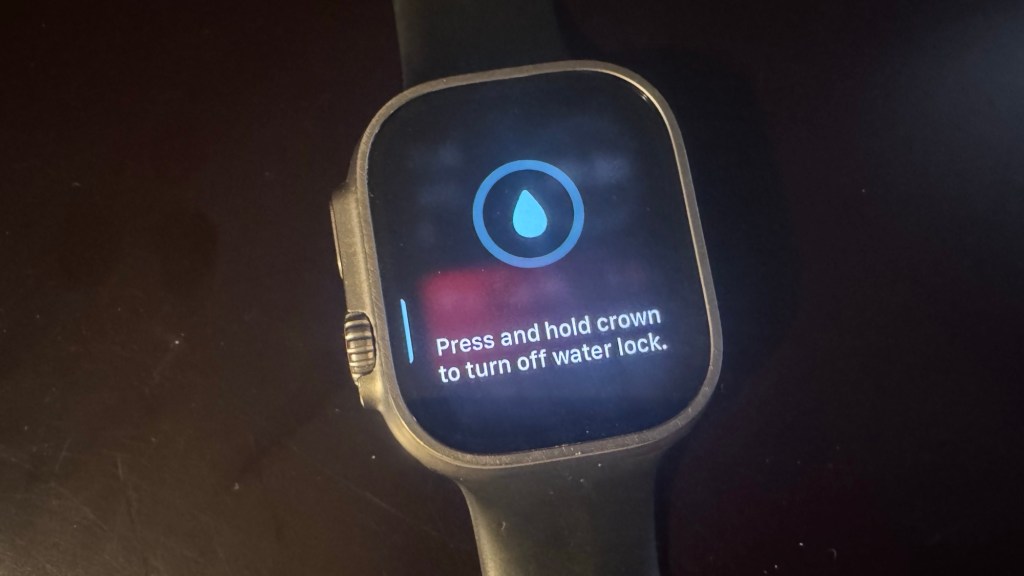
I frequently use the Timer and Stopwatch apps on my Apple Watch Ultra 1. With the Smart Stack and complications, controls for starting, stopping, and resetting these apps are just a tap away. That convenience is great, but I’ve run into numerous situations where accidental taps have caused my timers or stopwatches to stop or reset unexpectedly.
Why does this happen? Is the watch rubbing against something conductive that’s not my fingers? When I’m working out, is sweat triggering false inputs? In the rain, do wet clothes brush against the screen and cause accidental touches?
This has occurred while tracking how long a task took to complete, running laps or intervals, and setting screen time limits for my kid. These are just daily annoyances—but what if I needed to rely on the Apple Watch for something more critical?
Whatever the cause of these unintended touches, I’ve been looking for ways to prevent them. Here are two workarounds that I’ve found helpful.
Water Lock
Introduced in watchOS 3 with the Apple Watch Series 2, water lock disables the touchscreen to prevent accidental input until you hold the digital crown for a few seconds. It’s designed for swimming or water exposure, and when you disable it, the watch ejects water from the speaker. Water lock turns on automatically when the watch detects it’s in water, or you can enable it manually from Control Center.


The benefit of using water lock is that all touchscreen input is disabled. You must hold the digital crown to re-enable touch. The side button is also disabled, but the Action Button on the Apple Watch Ultra is not. Scrolling with the digital crown still works, which is helpful if you activate water lock from the clock face—you can still access notifications and the Smart Stack. But if you’re stuck in the wrong app, you can’t double-press the digital crown to switch apps or use the side button to access your wallet.
Touch Accommodations
Touch accommodations is an Accessibility feature of watchOS that offers a different approach. By setting a hold duration, you can still interact with the touchscreen, but only after holding your finger on the screen for a set amount of time. This adds a delay that filters out accidental touches.
To enable touch accommodations and set a Hold Duration:
- Press the Digital Crown to see your list of apps.
- Tap Settings.
- Tap Accessibility.
- Tap Touch Accommodations.
- Toggle Touch Accommodations on.
- Toggle Hold Duration on.
- Set the desired hold duration value.
- Disable Swipe Gestures.
Once these settings are active, you’ll need to tap and hold to interact with the screen. You want to disable swipe gestures to prevent the swipe to delete gesture in some apps or the Smart Stack.


This is great for preventing accidental touches, but it slows down everyday use. Swiping or scrolling with touch becomes especially sluggish, since you have to hold before the gesture is recognized. You can still scroll quickly using the digital crown.
To disable touch accommodations, triple-click the digital crown. Triple-click again to re-enable them.
If you’ve set up multiple Accessibility Shortcuts, triple-clicking will show a menu. Just tap Touch Accommodations to toggle it. To customize that menu:
- Go to Settings.
- Tap Accessibility.
- Tap Accessibility shortcut.
- Tap to enable/disable items you want to appear when displaying the Accessibility shortcut menu.
If only one item is enabled in the Accessibility Shortcut, it toggles immediately with a triple-click. The menu only appears when two or more features are selected.
With touch accommodations and hold duration enabled, you have to be more intentional when using the watch—but it really helps avoid those frustrating accidental inputs. I’m currently testing the minimum hold duration on my Ultra 1 and will update this post if I find I need to adjust it.
I won’t always leave touch accommodations turned on. I’ll just need to remember to enable it whenever I start a timer or stopwatch. Ideally, I’d love for these settings to activate automatically from those apps or be available via Shortcuts. For now, the triple-click method will do.
If you’re tired of accidental touches getting in the way of using your Apple Watch, give water lock or touch accommodations a try. Both have their strengths and trade-offs, but they can go a long way in preventing unwanted interruptions. If you’ve tried these options—or found another method that works—let me know in the comments below!






 tow.com
Leave a comment