
I’ve been using the new 13-inch iPad Pro (7th generation) with the Magic Keyboard for iPad (2nd generation) for the past week, and I have collected my thoughts on the Magic Keyboard in this article and accompanying video.
I’ll have more to say about the M4 iPad Pro in the future, so let’s get started with the Magic Keyboard review!
What’s new?
The second iteration of the Magic Keyboard for iPad has the following additions, changes, and improvements over the first version:
- New keyboard position
- Function row with an Escape key
- Aluminum base and palm rests
- Larger, glass trackpad with haptic feedback
- Lighter weight
- A side-mount powered port that rotates along with the hinge
Keyboard Position
Check out the position of the keys in the photo above depicting three generations of keyboard cases for the iPad Pro. The overall size of the Magic Keyboard and Smart Keyboard Folio has not changed much — the new iPad Pro is ever so slightly taller and wider — but the position of the keyboard has gone from being in the front on the Smart Keyboard Folio to the middle in the first Magic Keyboard to further back in the second Magic Keyboard.

This was done to accommodate the larger trackpad and function row keys. To retain the same 90-130 degree viewing angle, Apple adjusted the cantilever hinge in the back so that it snaps back to 90° compared to what looks like 75° in the original.

When the first Magic Keyboard was released in 2020, people noted that adding the function row would be impractical because they would be blocked by the display. The new hinge design pushes the display back enough to accommodate the function row. We’ll see later in this article how this change introduced a regression which Apple ultimately deemed acceptable.
Keys
The keys look and feel similar to the ones on the previous Magic Keyboard. I’m happy there is an Escape key along with function row buttons. Now I have to get used to pressing the dedicatec keys for brightness and volume instead of swiping down for Control Center or using the keyboard shortcuts with the Globe modifier for Spotlight and the App Switcher.
Aluminum base and palm rests
The aluminum base provides a more solid feeling when typing. This, coupled with the pushed back keyboard position, allows my hands to rest fully on the palm rests. On the previous Magic Keyboard, they rubbed against the front edge of the case, which was felt irritating at times.

Sound Profile
The sounds of typing on the new Magic Keyboard closely resembles that of the original Magic Keyboard, which I found to be very smooth and nice. Listen below.
Trackpad
Raise your hand if you remember the trackpads gracing the PowerBook 2300c, the Twentieth Anniversary Mac, the Wall Street/Bronze PowerBook G3 the Titanium PowerBook G4, or the 12-inch PowerBook G4? They were tiny compared to the trackpad on the first Magic Keyboard for iPad, which I thought was wide enough but not quite tall enough.

The new trackpad is a definite improvement. Its larger, glass trackpad feels great and provides plenty of space to mouse around and perform gestures. I also enjoy the soft thunk noise over the original’s loud click.
Size and Weight
I had forgotten that the iPro (3rd generation) in 2018 was actually lighter than the iPad Pro (5th generation) with the M1 processor. I guess I never really noticed it was heavier and thicker it was in the Magic Keyboard case nearly 100% of the time. Here are the thickness and weight specs for various Wi-Fi only iPads that I’ve owned:

Count me as a user who prefers the iPad Pro getting thinner and lighter. The 13-inch is certainly more hand-holdable than before compared to its predecessors, though I think the 11-inch is a better option if you primarily plan to use the iPad Pro as a tablet.
The new iPad Pro with the Magic Keyboard nearly matches the weight of the 13-inch MacBook Air (2.7 pounds or 1.24 kg). I personally use a 14-inch M2 Max MacBook Pro (3.6 pounds or 1.62 kg), and I’ll take any weight reduction I can get when I travel with both devices.
USB-C Power Port
The last change worth mentioning is that the the hinge containing the USB-C power port now rotates when you open and close the Magic Keyboard for iPad. I usually plug into the Thunderbolt port on the iPad itself, so I don’t know if this is a good or bad thing.
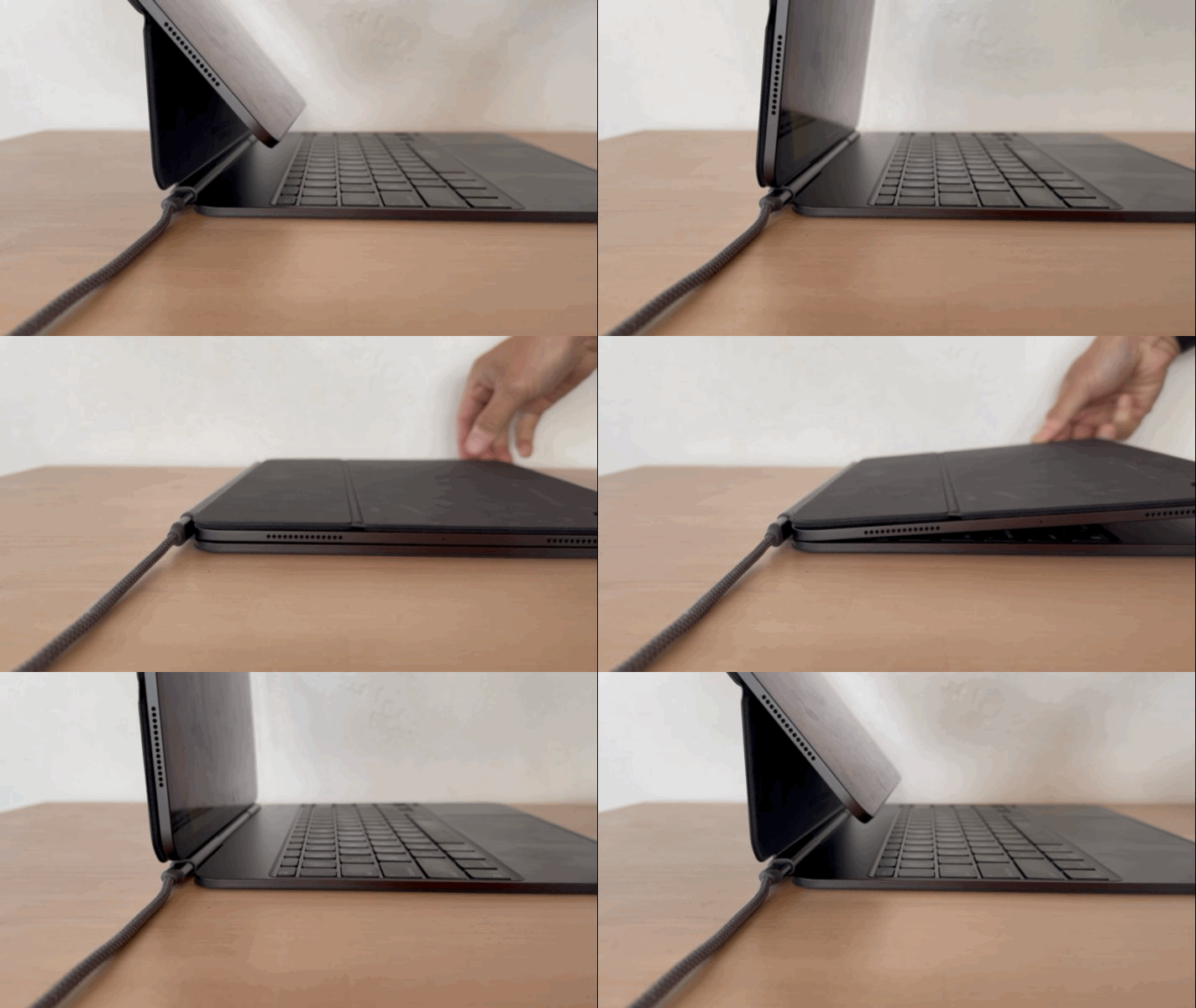
If you’ve been using an angled USB-C cable, be prepared for your cable to be sticking up after closing your case.

Build Quality
I have no complaints about the build quality of the aluminum base, the keys, and the trackpad. Apple’s been making these things for a long time, so you come to expect top-notch quality. The outer case, on the other hand, remains a mixed bag. We know that Apple shies away from using plastic these days (Apple Pencil outer housing aside), but the polyurethane cover continues to leave much to be desired.
My Smart Keyboard Folio and original Magic Keyboard are well used and look the part. The rubbery material around the edges are peeling off in certain areas on both keyboards, there are oil and dirt stains on the front and back, and the keys on the Magic Keyboard exhibit that ABS shine.
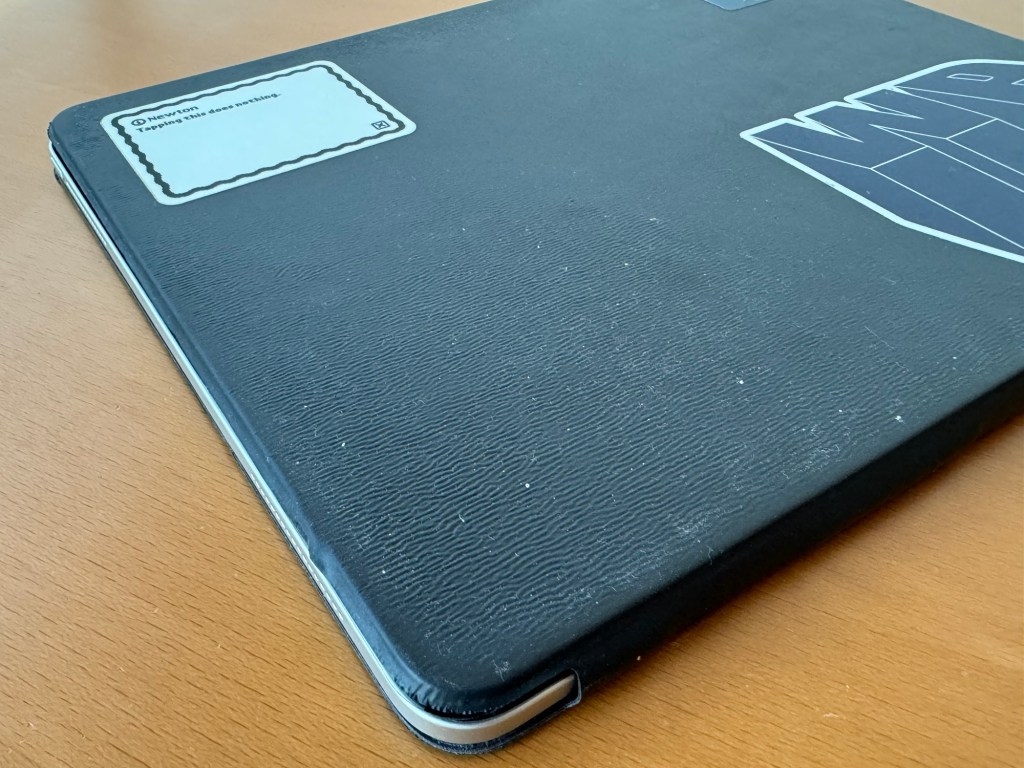

After just a few days of usage, I can already see some shine developing on the keys of the new Magic Keyboard. Sadly, I expect a similar degradation in the outer materials and edges in the future from this Magic Keyboard. On the other hand, would we have been any happier if Apple had chosen to use the FineWoven material for the outer case of the Magic Keyboard?
Regressions
The Magic Keyboard does take a step back in a couple of areas worth mentioning over the previous version.
Lap-ability
The change to the cantilever hinge’s max angle has introduced a regression in the iPad Pro’s lap-ability. It’s now easier for the 2024 iPad Pro + Magic Keyboard combination to fall over backwards when resting on one’s lap or at a negative incline angle.
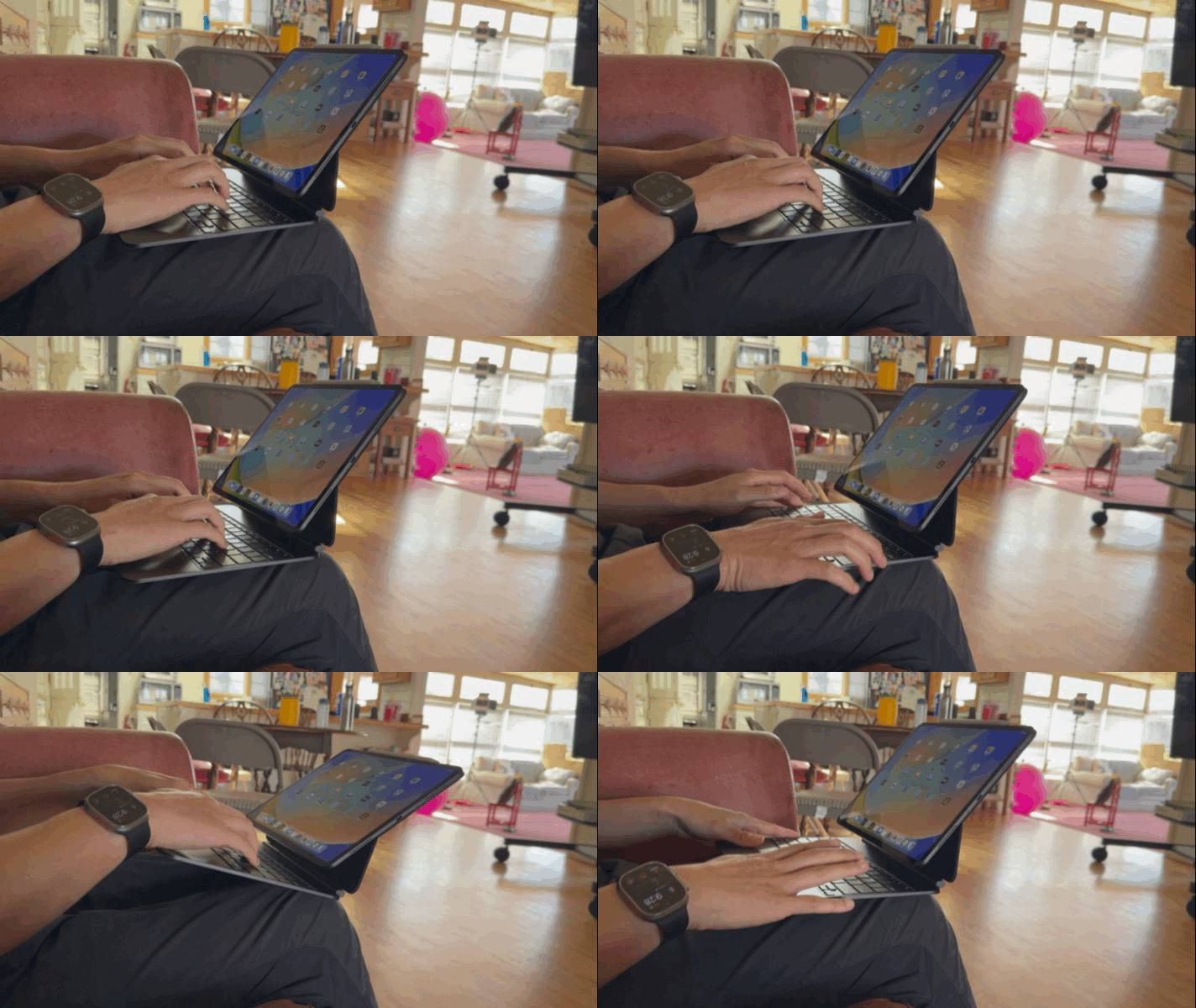
The center of gravity seems to have moved half an inch further back. This is not a problem if one’s hands are resting (read: pushing down) on the palm rests. Lift your hands, however, and be prepared to catch your iPad.

Easel Orientation
I wrote in my previous article about an alternate tablet position for the iPad Pro and Magic Keyboard that allowed you to draw on the iPad Pro like an easel without having to remove it. While this “feature” still exists on the new M4 iPad Pro and Magic Keyboard, it’s almost unusable. The new hinge is looser, making it easy to push the display so it’s flat when writing or drawing with the Apple Pencil Pro. The original Magic Keyboard’s hinge is tighter and better resists pressing down on the screen with the Apple Pencil.

So, the easel orientation gets a thumbs down from me. I’ll just remove the iPad Pro from the keyboard whenever I want to write or draw on it.
Planned Obsolescence
In the 1976 sci-fi movie Logan’s Run, people in the future live in this seemingly idyllic utopian city. Everyone’s needs are taken care of from birth to the age of thirty. A life clock crystal is embedded in each person’s palm when they are born; it changes colors as they grow older: clear up to age 8, yellow from 8 to 16, green from 16 to 24, and red from 24 to 30. Once the life clock starts blinking red, people must go to a “Sleep Shop” or try their hand at being “reincarnated” through an event called Carousel. Both methods, as you might imagine, are euphemisms for euthanasia; the city computer system uses them to keep the population in check. Those that try to live beyond their last day are called Runners, and they are hunted down and eliminated by black and grey clad officers called Sandmen. In the movie, the central computer —called the Thinker in the novel on which the film is based — accelerates the life clock of the protagonist, a Sandman named Logan 5, while giving him a mission to find Sanctuary, a place Runners go to escape Last Day.

Question: my life-clock?
Retrogram complete. Proceed: Zero Three Three Zero Three.
But? Am I still Red 6? But, I have four more years. I will get them back, won’t I?
— Logan 5 talking to the computer from Logan’s Run
I think a lot about this scene whenever I look back on all the technology that I’ve purchased, recycled, and discarded over the years.
Hardware and software, they all go through phases in their existence: new, modern, vintage, obsolete, and ancient (and retro for hardware and software that’s been given new life through emulation). What is the life clock for that shiny new piece of technology that you bought today? How long do you plan to use it and how long does the company who made it expect it to last?
In 2020, I wrote about The Many Keyboards of Past, Present, and Future iPads and had this to say about a future iPad Pro and Magic Keyboard:
Once I stop using this particular iPad Pro — or if a future iPad Pro has a significant design change to its physical dimensions — this Magic Keyboard is going to become a paper weight or museum piece. The Smart Keyboard Folio has effectively become this, since there’s almost no reason to use that unless I am planning to go to some dusty environment like Burning Man. Apple has perfected the art of planned obsolescence in many of their products. iPad keyboards like the Smart Keyboard, Smart Keyboard Folio and Magic Keyboard become obsolete once a new iPad comes out with a different form factor. AirPods and AirPods Pro become obsolete when their tiny non-removable batteries get depleted. Such is the price we pay for having beautifully designed and vertically integrated products.
We’ve reached this moment in 2024.
The internal magnets are positioned differently in both devices such that they are incompatible with the previous iPad Pro and Magic Keyboard combination (and vice versa).
Look, I get it. Apple makes products that are tightly integrated with one another. With all the changes in manufacturing with the new 13-inch iPad Pro to make it 5.1 mm thin, it must have been impossible to position the magnets in exactly the same place as the 2018-2022 iPad Pro lineup. This has been Apple’s MO for as long as I’ve been using their products — maybe it’s nostalgia for the past — but I feel like the cycles for such planned obsolescence have become shorter.

At the same time, Apple maintained compatibility of the Magic Keyboard (1st generation) with the new M2-powered iPad Airs. And, it wasn’t like Apple didn’t change anything with these new iPad Airs. They moved the front-facing camera to landscape orientation and changed the processor from the M1 to the M2. Yet, they kept the magnets in the same place. As a result, the life clock on the first generation Magic Keyboard has firmly moved to its green phase.
If in a few years, the iPad Air adopts the thinner and lighter design of the M4 iPad Pros, the blinking red phase will begin for the original Magic Keyboard. Today’s new Magic Keyboard will then move into its green phase, to be replaced by the even thinner, lighter, and more adjustable Magic Keyboard (3rd generation) with the next-gen iPad Pro.
$349 for this again?
I love keyboards and have bought dozens of them over the course of my life. During the pandemic, I went on a mechanical keyboard buying spree. I enjoy swapping (and lubing) the switches, changing the keycaps, and customizing the keys.

I’m always on the lookout for new keyboards; one day, I’d like to have an ortholinear or a split ortho keyboard. For some reason, however, I’ve always balked at the price of a keyboard like the ZSA Moonlander, which retails at $365. Why then, did I barely think twice about plunking down $349 for the new Magic Keyboard? I’ll readily admit the plain and obvious: Apple has convinced me over the years that this is the best integrated keyboard for the versatile iPad Pro. Good job, Apple marketing!
All that integration and versatility, however, comes at a cost:
- 13-inch iPad Pro: $1299-2599 depending on configuration
- Magic Keyboard (2nd generation): $349
- Apple Pencil Pro: $129
- Total: $1777-3077
I’m fortunate to be able to afford these computer and accessories. Right now, if you’re looking for a cheaper alternative, there aren’t many third-party choices out there that are designed for the new iPad Pro. Logitech makes the Combo Touch. It features a kickstand and detachable keyboard/trackpad and is priced at $259.99. This could be a good option if you want to switch between using the iPad Pro as a tablet and laptop.
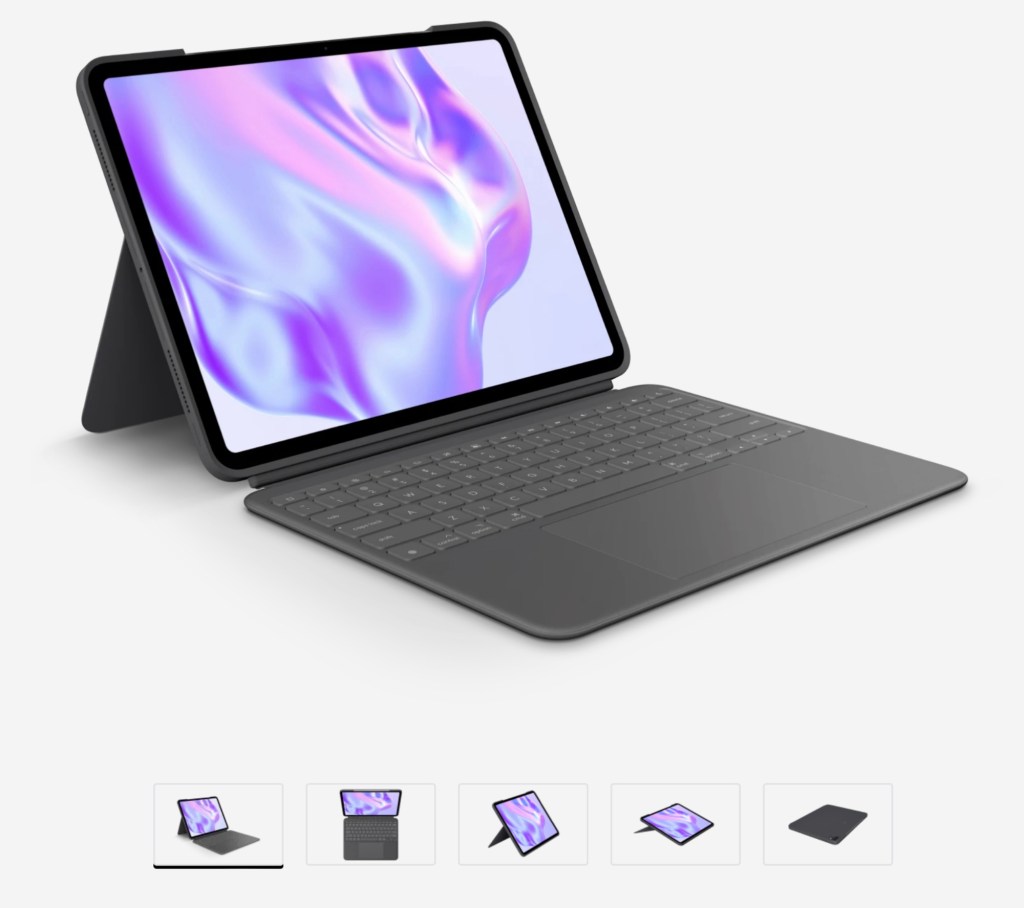
There’s also the option of carrying a separate external keyboard and mouse/trackpad with you, but that sort of negates having a thin and relatively light integrated solution.
A future Magic Keyboard I’d like to see
What I’d really like to see from Apple is a little more innovation in the area of long-term interoperability. Despite being a very good keyboard, the Magic Keyboard is still just a uni-tasker. I can’t use it with any other device than this M4-powered 13-inch iPad Pro. A mechanical keyboard that I buy today, on the other hand, will be usable for years, if not decades, down the road.
Here is what I would change to the Magic Keyboard for iPad to make it last longer:

- Allow the Magic Keyboard to act as a USB keyboard and trackpad for any computer when plugged into the USB-C port in the hinge.
- Add Bluetooth and a battery so it can be used with up to three different Apple devices when not connected to an iPad.
- Allow the backing to be removed from the hinge when used in this manner (or be folded back all the way).
Raise your hand if you want a flat keyboard and trackpad combo like in the illustration above? Microsoft is doing this with its new Flex Surface Keyboard, and Apple had a similar product for the Twentieth Anniversary Mac. This will breathe new life into the Magic Keyboard for iPad and allow it to be used for much longer on a wider variety of devices.
Sadly, this is only a pipe dream, since the USB-C port is power-only and doesn’t transmit data.
I guess this all means that maybe, just maybe, there’s something to look forward to in the third generation Magic Keyboard. If not, I’m crossing my fingers that some enterprising fellow mods the Magic Keyboard so that it can escape last day and reach keyboard sanctuary!
Conclusion
So, there you go, my review of the 2nd generation Magic Keyboard for the 2024 13-inch iPad Pro. If you are upgrading from an iPad Pro from 2018 to 2022 and already have the Magic Keyboard, you will reluctantly hand over another $349 for the new version, but you’ll ultimately like the additional keys and the improvements to the trackpad and build.
The regressions are unfortunate, but in the case of the lab-ability —once you’re aware of it — you’ll keep one hand on the palm rest to prevent it from tipping over.
The Magic Keyboard should not be the reason to buy the new iPad Pro, but it’s recommended if you plan to use the iPad in laptop mode. If affordability is an issue, check out the Logitech Combo Touch or an external keyboard with a Smart Cover or an iPad stand.





 tow.com
Leave a reply to JohnIL Cancel reply