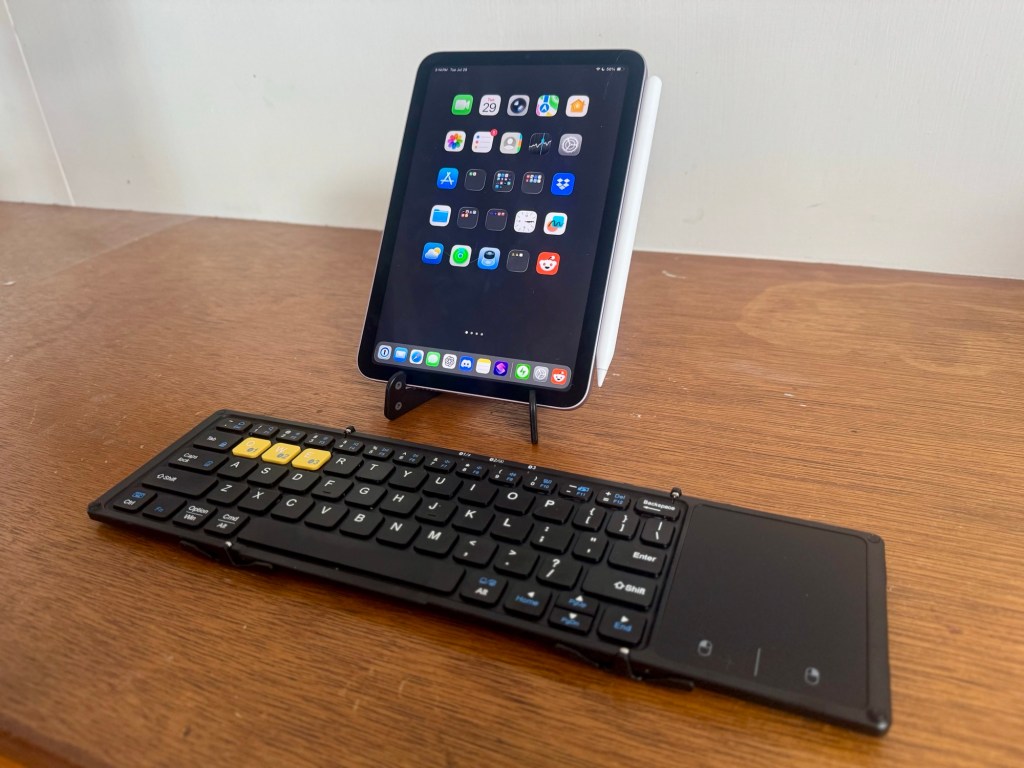
I’m typing this post on a new iPad mini (A17 Pro) paired with the Artciety Three Folding Keyboard with Touchpad. My goal is to use this compact keyboard setup whenever I travel light and need to type for extended periods. In this article, I take a deep dive into the landscape of portable keyboards for the iPad mini and explain why I ultimately chose the Artciety over a number of other contenders.
TL;DR
- Best for: Light travelers who still want full typing speed
- Pros: Pocketable, standard layout, touchpad, supports 3 devices
- Cons: No escape key, no inverted-t arrow layout, collapses on soft surfaces
The mini goes from 6 to A17 Pro
When the iPad mini (A17 Pro) 1 was announced in October, 2024, I held off from buying it, because I did not find it to be that much different from the iPad mini (6th generation) 2 I purchased in September, 2021. But with iPadOS 26 around the corner, I wanted another device that supported features such as Apple Intelligence. Unfortunately, the processor and RAM in the iPad mini 6 are insufficient for this, even though other features in iPadOS 26, such as multi-window support and the new Liquid Glass interface, are supported. It’s also a shame that the older Apple Pencil is incompatible, but I can share an Apple Pencil Pro that I bought with my M4 iPad Pro.

I picked up a 128 GB iPad mini (A17 Pro) in purple during Amazon Prime Week. I handed down my iPad mini 6 to my wife to replace her iPad mini (5th generation), which will become my iPadOS 18 test device. My older iPad mini 4 now serves as a test machine for iPadOS 15 compatibility with my MixEffect app.
15 years of keyboards for the iPad
Ten years ago, when the iPad Pro 12.9” was released, I raved about its software keyboard, calling it “the best software keyboard implementation I’ve used yet.” As long as I’m not trying to compose in HTML or coding, it’s still the best software keyboard I’ve used. It presents a standard, near full-size layout, which is perfect for this touch typist.

The smaller iPads don’t have as much screen real-estate as the 13-inch iPads, however, so their software keyboards look and feel more like the iPhone. Whether it’s in portrait or landscape orientation, the software keyboard does not present a full-sized standard ANSI keyboard layout.
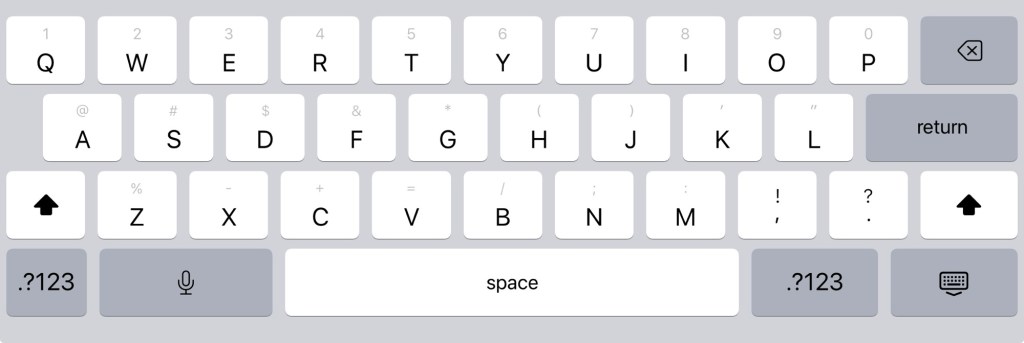
Common keys, such as number and punctuation keys are hidden behind a separate layer. I have to press the .?123 or #+= key in order to access these characters. I can’t rest my fingers on a software keyboard like I can with a physical keyboard without my touches getting interpreted as key presses. The lack of tactility also makes it easy to miss-hit a series of keys as I am typing quickly.
I have written before about the many keyboards of the iPad. I also reviewed the Magic Keyboard for the M4 iPad Pro a year ago. If you have any iPad other than the iPad mini, Apple has a keyboard case for you, which are arguably better for most people than the third-party alternatives.
A keyboard fit for the mini
I have a bevy of hardware keyboards at my disposal at home, from heavy mechanical keyboards, to the thin and light Apple Magic Keyboard, and to solar-powered Logitech keyboards. I even have an original iPad Keyboard Dock that I can use with the iPad mini 7 by connecting a 30-pin to Lightning adapter to a Lightning to USB-A dongle to a USB-A to USB-C cable.
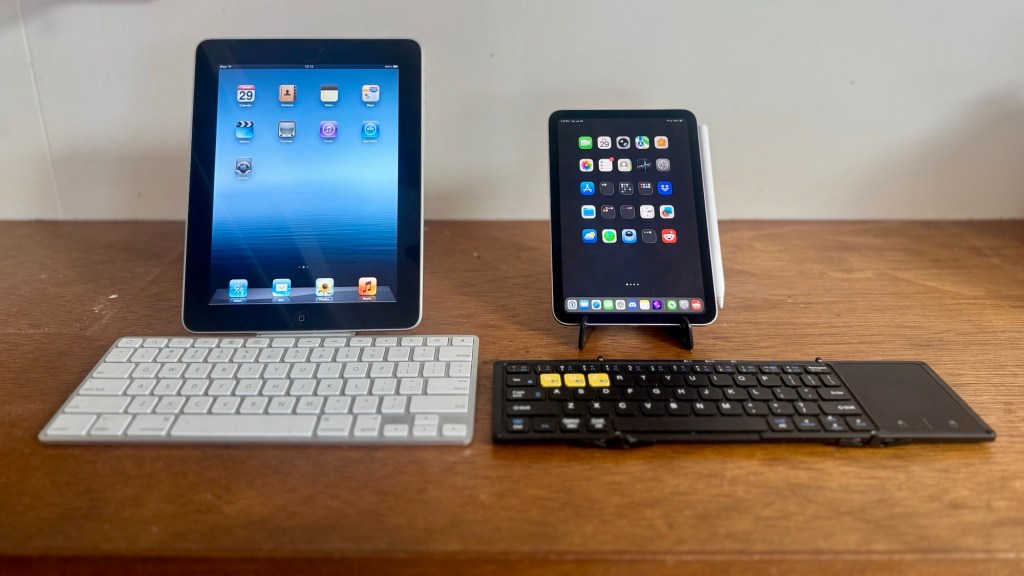
Sadly, none of these keyboards are suitable for bringing with me on a Jack Reacher-style no luggage trip where everything I bring with me can fit in my pockets (or a small sling or waist bag).
The key requirements for me are:
- Portability
- Standard keyboard layout
- Trackpad
Portability means the keyboard has to be either integrated into the case for the iPad mini or it’s got to be foldable so I can fit it in a pocket.
Having a standard keyboard layout means I don’t have to relearn anything when typing. I am already having to remember modifier key combinations with the software keyboard; I don’t want to have to do this again with a hardware keyboard.
iPadOS 26 makes the iPad operate more like a traditional desktop computer, with multiple, freely resizable windows, and an application menu bar. If I’m using a keyboard to type, I’d want a pointing device like a trackpad or a mouse. I don’t want to have to lift my fingers from the keyboard and touch the screen. This was somewhat annoying with the Smart Folio Keyboard that I used with the 12.9” iPad Pro (3rd generation) before the release of the Magic Keyboard for iPad.

I have no illusions that a third-party trackpad is going to perform as well as the trackpad on the Magic Keyboard for iPad. It just has to not be totally unusable for it to be worth having.
Keyboard case contenders
We now come to the various keyboard cases 3 and folding keyboards that I considered before making my purchase.
Jump to my review of the Artciety Foldable Keyboard with Touchpad if you’re not interested why I excluded the following contenders. Some of these cases may appeal to you, so I encourage you to not discount them just because I didn’t choose one of them for myself.
Contender #1: HOU Slim Folio Keyboard Case
The HOU Keyboard Case for iPad mini ($59.99) is intriguing, because it’s the most similar to the Apple’s own Smart Folio for the iPad mini. I’ve used the Smart Folio before with my iPad mini (2nd generation) and iPad mini (6th generation).
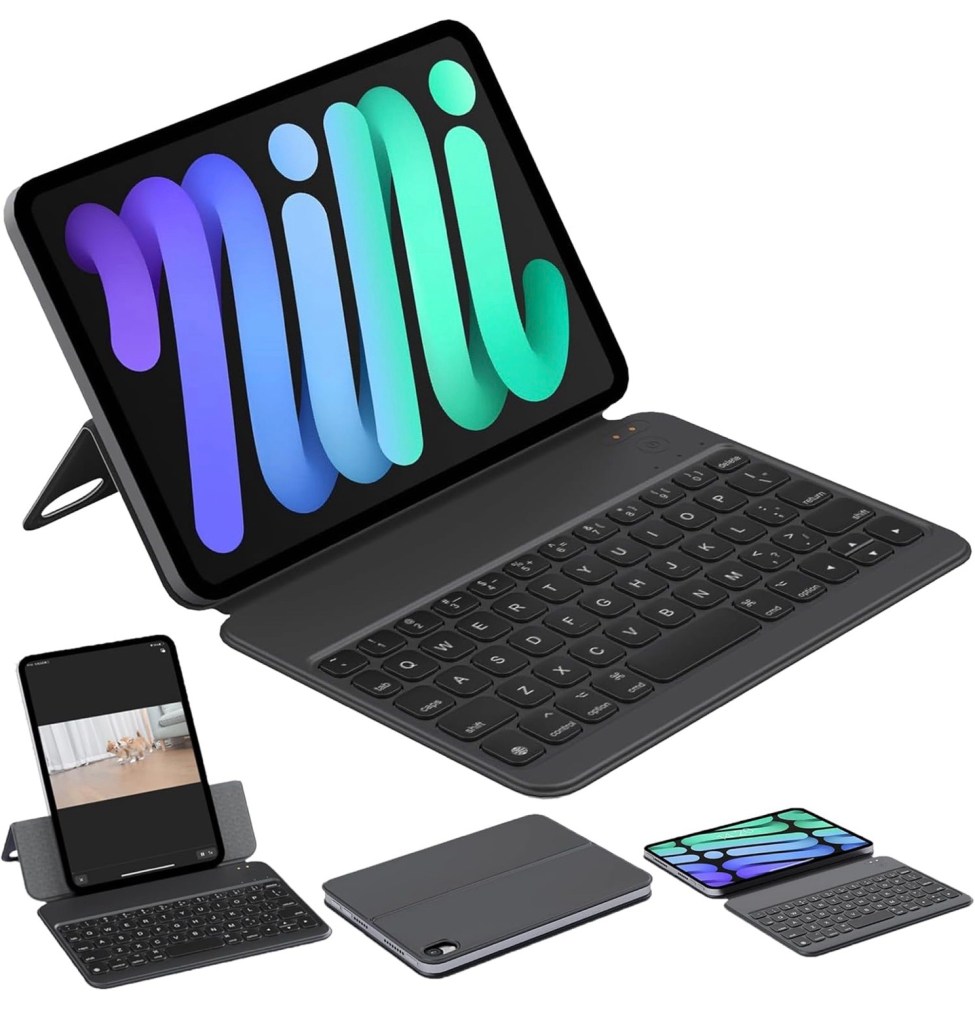
This keyboard case achieves its slim profile by having a proprietary magnetic connector for charging. This meant I would have to bring a special cable if the battery were to run out. Since my trips would likely be shorter than the battery life of the keyboard, I suppose I could travel without the charging cable.
This keyboard case is just 4.7mm thick and weighs 240 grams or 8.47 oz or 0.53 pounds.
What I could not change, however, is the non-standard keyboard layout. Like with the software keyboard, I would have to press a modifier key in order to access commonly used characters like single quote, double quote, question mark, plus, and minus.
Finally, there’s no trackpad on the HOU keyboard case, so I would have to use my finger or the Apple Pencil to interact with the user interface.
Pros
- Most like Smart Folio
- Thin and light
- iPad can be placed in portrait orientation
- Dedicated Globe key
Cons
- Non-standard keyboard layout
- Proprietary magnetic charging connector
- No trackpad
Contender #2: HOU Detachable Keyboard Case
The HOU Keyboard Case for iPad mini with adjustable stand and detachable full protective case ($69.99) features a removable keyboard and a standard USB-C port for charging. The keyboard itself features backlit keys with a function row and an escape key. In the bottom, left, there is a dedicated Globe key. When flipping the keyboard behind the iPad, it automatically shuts itself off to prevent accidental key input.
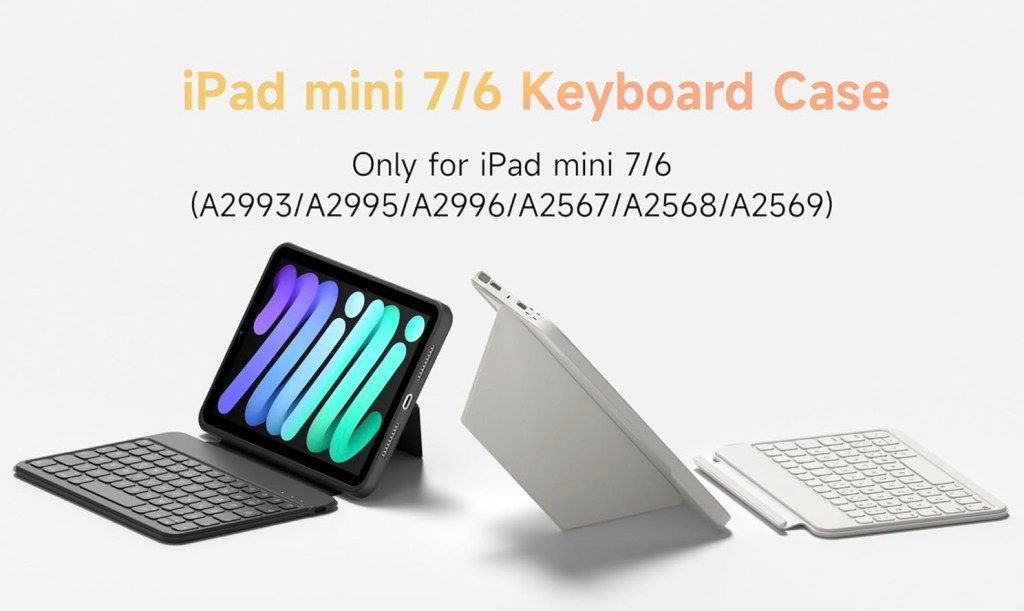
I found three downsides to this keyboard case. First, the iPad mini needs to be placed inside a case, unlike the first HOU keyboard case where the iPad mini attaches magnetically. When traveling light, I want to minimize any added bulk and weight to the iPad mini.
Second, the keyboard layout is non-standard. It’s actually a little different from the first HOU keyboard case. It has an extra key for question mark and double quote (via modifier), but replaces the right command and option keys for a dedicated backlight key.
Finally, as with the other HOU keyboard, there’s no trackpad, so I’ll be using my fingers to navigate the UI.
Pros
- Detachable keyboard
- USB-C charging port
- Case protects sides of iPad mini
- Backlit keys
- Full function row and Escape key
- Dedicated Globe key
- iPad can be oriented in portrait using kickstand
Cons
- Heavy
- Case adds bulk to iPad mini
- Non-standard keyboard layout
- No trackpad
Contender #3: MePadKey Magic Touchpad Keyboard Case
I’ve watched a number of reviews of the MePadKey Magic Touchpad Keyboard Case ($72.99). It is like a combination of the two Hou keyboard cases but comes with an integrated trackpad. The iPad mini can be attached and removed easily, and it has a standard USB-C port and a backlit keyboard.
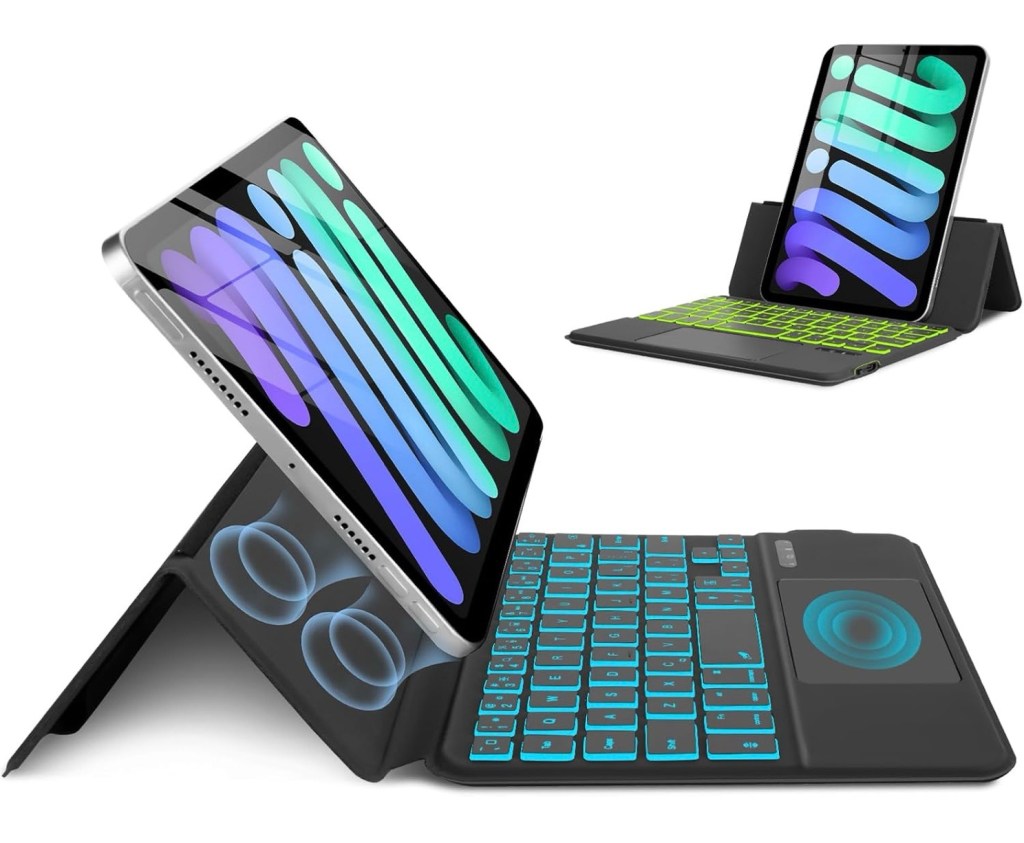
I strongly considered this keyboard, but I held off because of the non-standard keyboard layout. The backspace key, for instance, is next to the P key (similar to the software keyboard), and the quote and double quote characters are modifiers off of the O and P keys.
I’ve also read and watched reviews that said the build quality is not as good as the HOU keyboards. At 10mm thick and 330 grams, it’s a hefty case compared with the first HOU, although it’s lighter and thinner than the second HOU keyboard case. Apparently, there’s no auto-power off, so you have to remember to switch the case off when not using it.
Pros
- Trackpad
- Easy attachment and removal
- Backlit keyboard
- iPad can be placed in portrait orientation
- Protects the Apple Pencil with flap
Cons
- Heavy
- Non-standard keyboard layout
- Backspace key is where the \ key is located
- No auto-power off
Folding keyboard contenders
With none of the keyboard cases being viable for me, I turned my attention to folding keyboards. My first folding keyboard I ever used was the Stowaway Keyboard for the Palm line of handheld computers. If I still had one, I might have gotten this adapter to make it work with my iPad mini and iPhone.
Contenders #4 and #5: iClever Folding Keyboards
iClever makes a variety of foldable keyboards, and I considered two of them, the BK05S and the BK08. Both of these are tri-fold keyboards and support USB-C charging. The iClever BK05S Folding Wireless Portable Keyboard ($49.99) unfolds to a full-size keyboard with function keys.
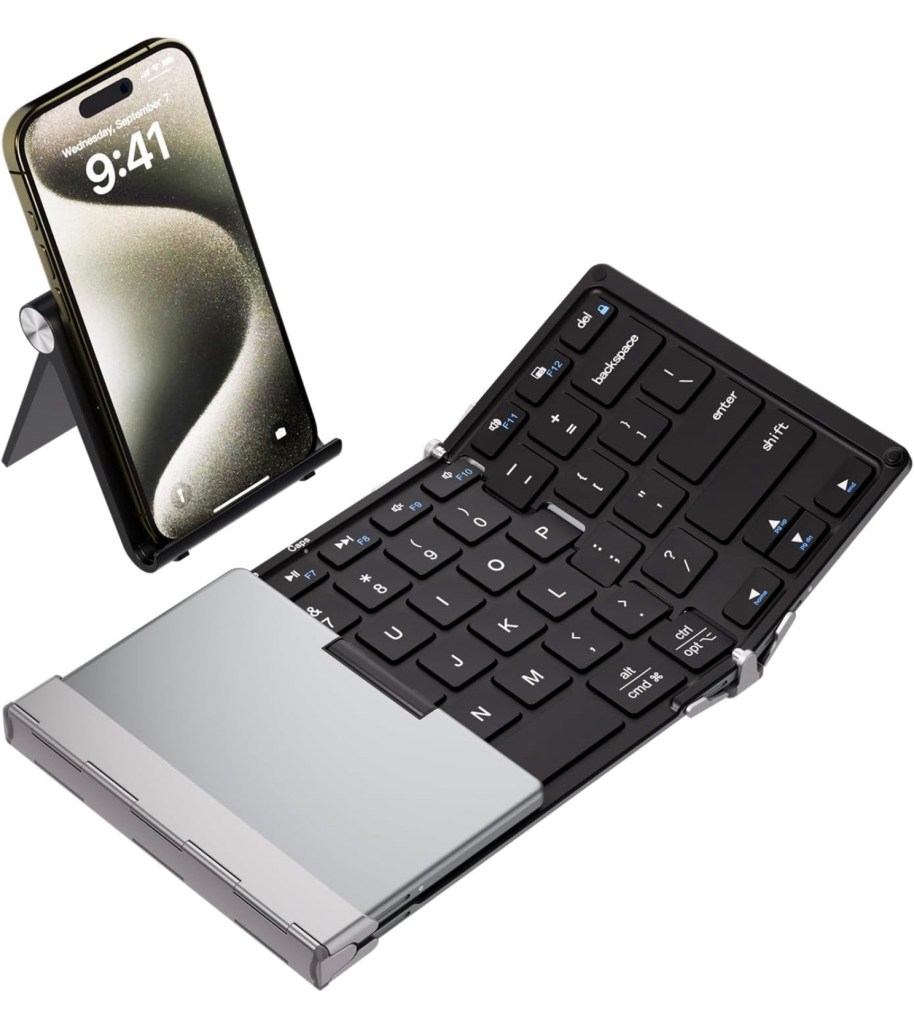
The iClever Foldable Keyboard BK08 with Sensitive Touchpad ($52.99) features a trackpad but also a non-standard keyboard layout. It’s better than the HOU or MePadKey layouts, but different enough that I know would annoy me after a few minutes of typing.

With the two iClever keyboards, I had to choose between standard keyboard layout or a trackpad. With the next keyboard, I didn’t have to choose.
The Pick: Artciety Three Folding Keyboard with Touchpad
The Artciety Three Folding Keyboard with Touchpad ($40.99) is what I ultimately chose to purchase. It’s a tri-fold folding keyboard that features a standard keyboard layout and a touchpad. Structurally, it looks very similar to the iClever keyboards — they are probably all manufactured by the same company. I bought it on sale on Amazon for $34.43. At that price, you could buy ten of these foldable keyboards for the price of one $349.99 Magic Keyboard for the 13-inch iPad!

The Artciety checks off a number of boxes for me:
- Standard ANSI keyboard layout
- Function keys via modifier combination
- Touchpad
- USB-C
- Pocketable and relatively lightweight (7.6 oz or 214 grams or 0.47 pounds)
Keyboard
The keys use a scissor switch mechanism, and they feel okay. It’s not the worst keyboard that I’ve ever used, and I can see myself typing on this for extended periods of time. I bemoan the fact that the arrow keys are not in an inverted-t configuration. They followed the trends at the time and made the left and right arrow keys full sized and the up and down arrow keys half-sized.
The half-sized number and backspace keys take some getting used to. Normally, it’s the function keys which are half-height, so my muscle-memory needs to be retrained when using the Artciety.
Unlike the HOU and MePadKey keyboard cases, there is no dedicated Globe key. However, I remapped the Control key to function as the Globe key, with the Caps Lock key becoming my new Control key. Read my tips section at the end of this article for more tips on customizing the hardware keyboard and trackpad on iPadOS. Unfortunately, there’s no dedicated Escape key (Fn-Tilde opens the Home Screen on iPadOS), and I ran out of keyboard modifiers to remap. The right Alt button is useless; it would have been better if it was a right Command key.
One of the things that I like about my mechanical keyboards is that I can remap any of the keys to perform any keystroke. It would be nice if I could reprogram the Artciety in the same fashion.
Touchpad
The trackpad is serviceable. It supports multi-touch gestures such as two-finger tap for right-click, two-finger scrolling, and three-finger swipes for moving between applications, exposé, and displaying the Dock. Four or five finger gestures are limited to take screenshots, which is redundant given there’s a dedicated Fn-Minus key shortcut.
Responsiveness is not as good as using the Magic Keyboard’s trackpad. If I need to quickly scroll through a document or use more multi-touch gestures, I probably will just use my fingers. It’s still better than not having a trackpad in the first place.
Size and Portability
The Artciety has the following measurements and weight:
- Folded up: 7 1/8 inches long by 3 1/16 inches wide by 9/16 inches tall
- Unfolded: 12 7/8 inches long by 3 3/4 inches wide by 0.35 inches tall
- Weight: 7.5 oz or 214 grams or 0.47 pounds

When folded up, the width of the keyboard is just under the width of the iPad mini itself. When expanded, the keyboard is about 85-88% the size of a full-sized keyboard. My fingers are still able to touch type effectively, something I don’t think I could say the same about the other keyboards with non-standard layouts.
As with the iClever keyboards, the keyboard tends to collapse on itself if it’s not placed on a flat surface. Keep this in mind if you frequently type with your computer on your lap.

Typing is ideal when the iPad mini is in portrait orientation because you can see more of your written content. If I’m using two or more applications at the same time, I would rotate the iPad mini to landscape orientation.
Bluetooth
The keyboard also supports connecting up to three different devices. I currently have the iPad mini on BT #1 and my iPhone 15 Pro Max on BT #2. This is great if I decide to travel with just the iPhone.
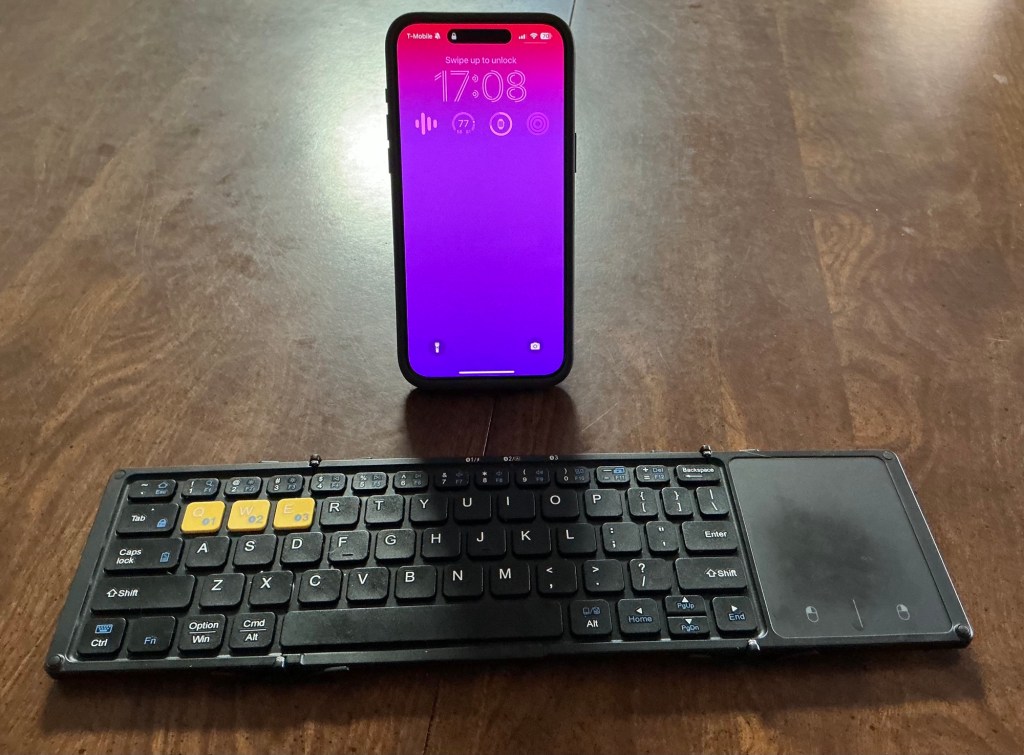
Any foldable keyboard with a touchpad is going to have compromises, but I feel like the Artciety Three Folding Keyboard with Touchpad is the best one for my personal situation. For less than $40, this is a very affordable keyboard and touchpad combination, compared with more expensive keyboard cases or external keyboards.
Would you buy one of these keyboards or keyboard cases? Why or why not? Do you prefer typing on a software keyboard of a physical one? Let me know in the comments section below!
MOFT Dynamic Folio Case for iPad mini
The Artciety keyboard comes with a small foldable stand for propping up the iPad mini, but I wanted something to protect the screen when it’s in my pocket or sling bag. I could have purchased another Smart Folio from Apple, but I was wondering if I could pay the same or less and get a case that offered more utility.

Enter the MOFT Dynamic Folio case for the iPad mini ($39.99). This case is like an origami in that it can transform into several positions for viewing, typing, presenting, drawing, and more.
Ergonomically, you’ll want the iPad mini propped by vertically so you are not constantly hunching your shoulders and looking down onto the screen. The presentation mode lifts up the Mini about two inches.
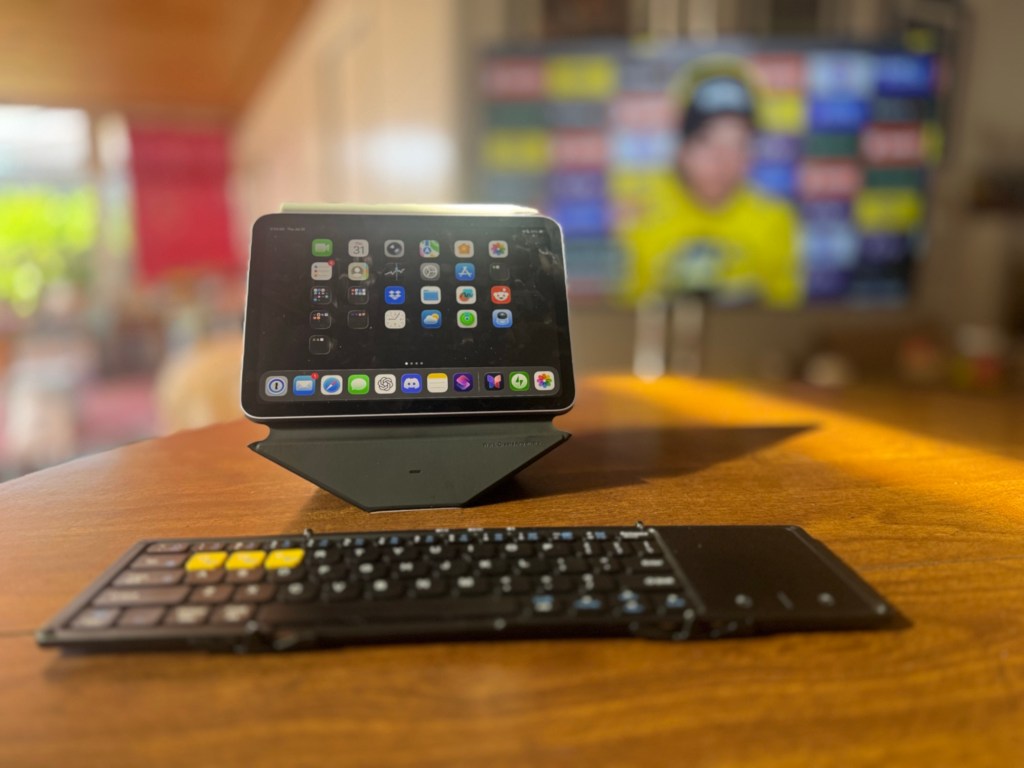
There’s even a mode to use the iPhone and iPad mini at the same time.

I did find the case to be a little more finicky and fragile to get in a good portrait orientation. The most stable position puts the screen at a very steep angle, whereas setting a comfortable angle puts the device and case combo in a wobbly position.


The MOFT is noticeably heavier than the Apple Smart Folio for the iPad mini, mostly due to the additional magnets and an extra flap on the back of the case.
- MOFT Dynamic Folio for iPad mini weight: 0.4 pounds or 6.4 oz or 182 grams
- Apple Smart Folio weight: 0.24 pounds or 3.9 oz or 106 grams
The combined weight of the Dynamic Folio and Artciety keyboard is more than any of the three keyboard cases I considered. That alone could be a point in favor of an all-in-one solution. Time will tell whether the added versatility of the MOFT case and standalone keyboard makes the trade-off worth it.
Real world use cases
When everything is combined, the iPad mini, the MOFT Dynamic Folio, the Artciety foldable keyboard, and the Apple Pencil weigh in for a total of 1.55 pounds or 24.8 oz or 702 grams. It’s lighter than my 13-inch M4 iPad Pro with the Magic Keyboard (2.75 pounds or 44 oz or 1.246 kg) and maybe half a pound lighter than an 11-inch iPad Pro with the Magic Keyboard. It feels bulkier in some ways because there are separate components to carry.
Traveling ultralight requires ruthless minimization of the things you choose to take. Would taking this keyboard have helped me?
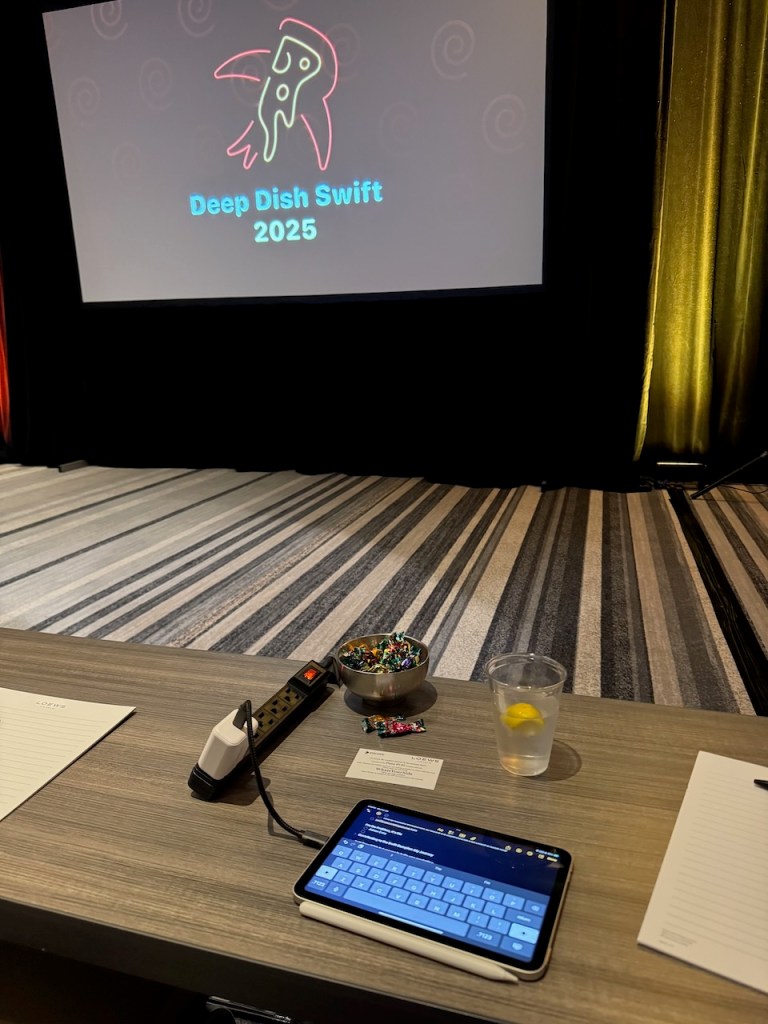
At the Deep Dish Swift conference in Chicago, I took a lot of notes using the Apple Pencil. It worked, but handwriting is always going to be slower than typing, especially if I’m trying to write code. I think having the keyboard would have been a net plus.
On the other hand, I used the iPad mini for in-person demos in Las Vegas for NAB 2025. A keyboard and case would have slowed me down on the show floor at the Las Vegas Convention Center.
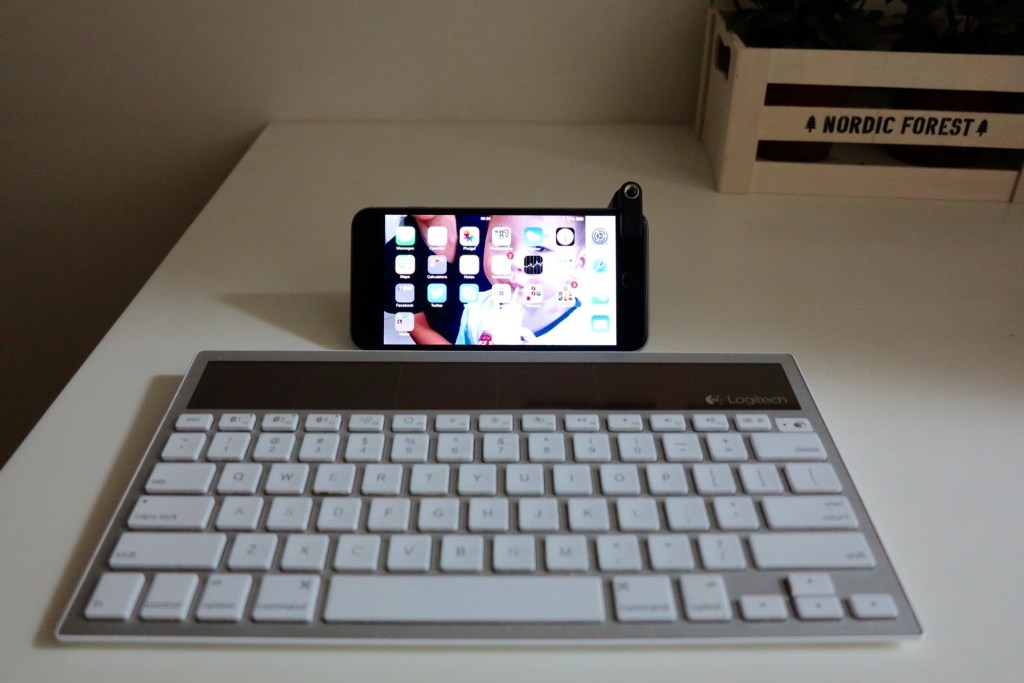
Finally, for my trips to Spokane and Seattle, I just brought my iPhone with me. I was writing blog posts and emails, so having a portable keyboard may have come in handy. There’s historical precedence for this. In 2014, I traveled to South Korea and brought my iPhone 6 Plus 4, a Glif stand, and my Logitech K760 solar-powered keyboard.
Final thoughts
While I didn’t go hands-on with the other keyboard cases and folding keyboards, I did a deep dive into their specs, layouts, and reviews. For me, none of the other contenders checked all of my requirements. The Artciety Three Folding Keyboard with Touchpad, however, came the closest. So far, it’s proven to be a capable option that pairs well with my iPad mini (A17 Pro) and iPhone. It’s not without compromises, but for less than $40, it’s a good addition to my minimalist travel kit.
Tweaking keyboard and trackpad settings
There are some of accessibility and keyboard settings that I have set to be more productive with the Artciety keyboard and touchpad.
Modifier keys
The foldable keyboard that I bought has the Control, Fn, Option, and Command keys in that order in the bottom right. It’s non-standard when compared with Apple keyboards, which place the keys in the following order: Globe, Control, Option, and Command.
In iPadOS, I was able to change what the keys do on my foldable keyboard in the Hardware Keyboard section within iPadOS Settings > General > Keyboard > Hardware Keyboards. I changed the Caps Lock key to be Control, and the Control key to be the Globe key. Now, I have access to all those iPadOS keyboard shortcuts for accessing Siri, Control Center, Notifications, and window management using the Globe key. And Control is in the position that I prefer from my days working on Sun workstations at Sweet Hall on the Stanford campus.

Auto-Correct and Auto-Capitalization
On a software keyboard, having auto-correct and auto-capitalization turned on are useful, but you may want to turn one or both of these features off when using the hardware keyboard. Go to Settings > General > Keyboard > Hardware Keyboard to make these changes.
Disabling Pointer Animations
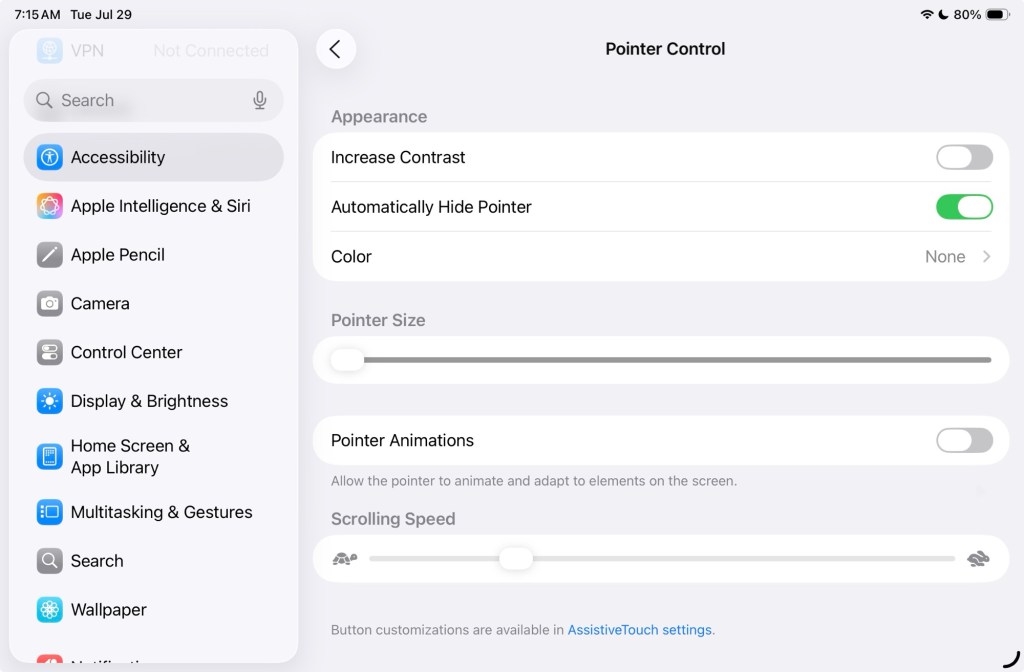
iPadOS introduced a circular shaped pointer in iPadOS 13.4 in 2020. One of the highlighted features was the ability for the cursor to morph and snap to user interface elements such as buttons and list items. In iPadOS 26, Apple changed the cursor from a circle to a more traditional arrow. To stop the cursor from snapping to buttons, you can turn off Pointer Animations in Settings > Accessibility > Pointer Control.
Notes in the margin
- Over the past year, Apple has made a change to the way it names its products. On the software side, Apple is skipping iPadOS 19 and emulating model car years with iPadOS 26. For its hardware products, Apple is using the processor inside the device as the model identifier. The A17 Pro was first used in the iPhone 15 Pro series and is being repurposed for use with this seventh generation iPad mini. The standard iPad is called the iPad (A16), and the iPad Air and iPad Pro tablets are denoted by the processor inside (M3 and M4).
- If you have an iPad mini (6th generation) and are happy with it, there’s no need to upgrade to this version. The iPad mini lineup is on a three to four year update cycle, so my recommendation is to wait until the eighth generation model comes out. Or, if the rumors of a foldable iPhone are true, you can wait next year and get the best of both worlds — an iPhone that folds out to become an iPad mini. Crossing my fingers, but not holding my breath, that this device will have Apple Pencil Pro support.
- If I wasn’t so enamored by the size of the iPad mini, I would have gotten an 11-inch iPad Air or iPad Pro along with the Magic Keyboard. It has a standard ANSI keyboard layout, albeit compressed, and a great trackpad. It fails the portability checkbox in that you can’t pocket an 11-inch tablet as well as the iPad mini.
- On iOS, you will have to turn on AssistiveTouch in Accessibility in order for the mouse cursor to appear.
Product Links
- iPad mini (A17 Pro)
- Artciety Three Folding Keyboard with Touchpad
- MOFT Dynamic Folio for iPad mini
- HOU Keyboard Case for iPad mini 7th (A17 Pro, 2024) & 6th (2021) 8.3-inch, Ultra Slim Folio
- HOU Keyboard Case for iPad mini 7/6, 156° Adjustable Stand, Detachable Full Protective Case
- MePadKey Magic Touchpad Keyboard Case for iPad mini 7 (2024)/Mini 6 (2021) 8.3 inch, Slim Magnetic Folio
- iClever Foldable Bluetooth Keyboard BK05S
- iClever Foldable Bluetooth Keyboard BK08 with Trackpad
Disclaimer: This post may contain affiliate links. If you make a purchase through one of these links, I may earn a small commission at no additional cost to you. Thank you for supporting my blog!





 tow.com
Leave a reply to Felix Wong Cancel reply