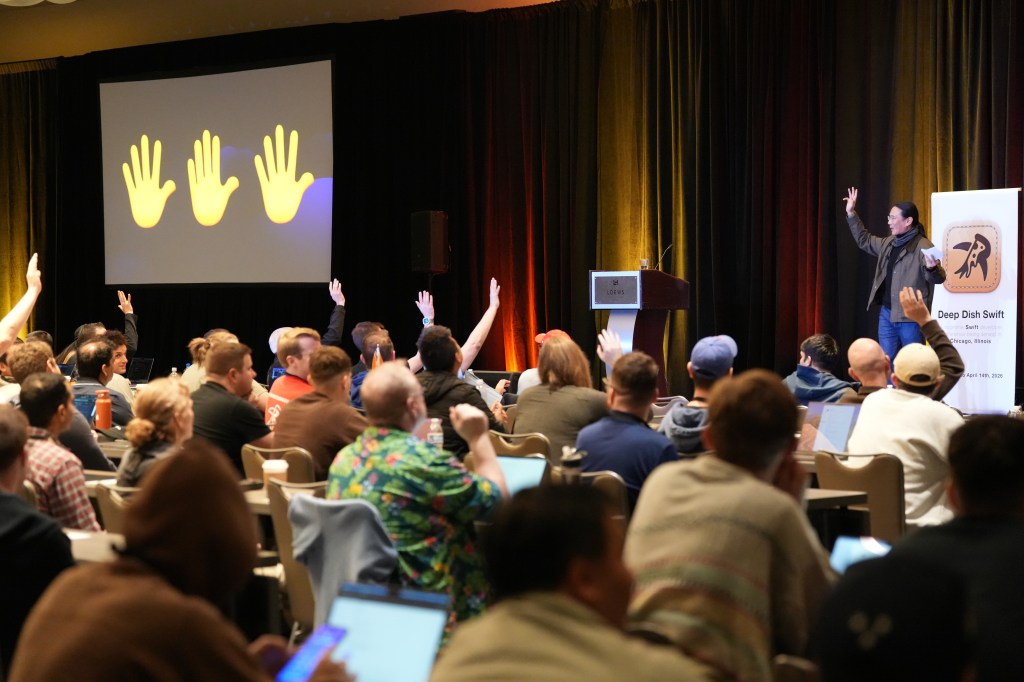
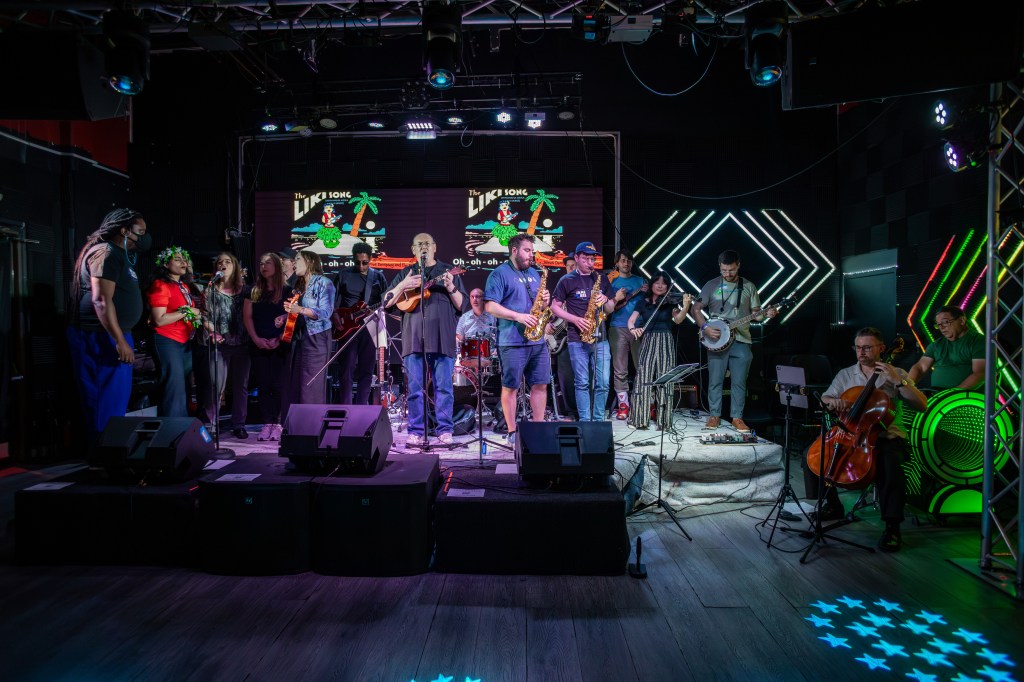
At Deep Dish Swift 2026, I controlled my entire slide deck live on stage—using only my voice.
My talk, The Long Game for Indie Developers, was a walk through 45+ years of using Apple products and a 30+ year journey as an indie developer. For this presentation, I wanted to try something different: let my spoken story drive the slides—not the other way around.
Changing Slides With My Voice
One goal for the talk was to use my new app, Action Phrase, to control slide playback. Action Phrase brings voice control to live production. Its Scripts feature lets you trigger actions automatically as you move through your presentation—advance slides, switch cameras, and fire cues just by speaking naturally.
I imported my script into the app and defined phrases to transition slides in Keynote running on the iPad mini 7. My iPhone acted as the listening device for Action Phrase, with a RODE Micro wireless microphone handling audio. While I could have used the room audio and the iPhone’s built-in microphone, I wanted to control as many variables as possible. I clipped the transmitter on my jacket, opposite the house lavalier.
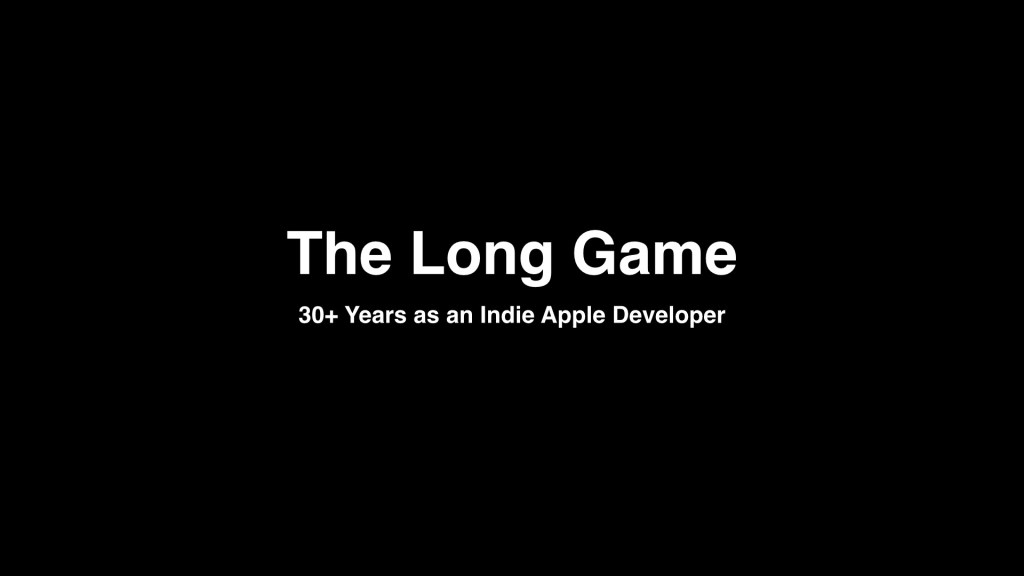
Slidedeck
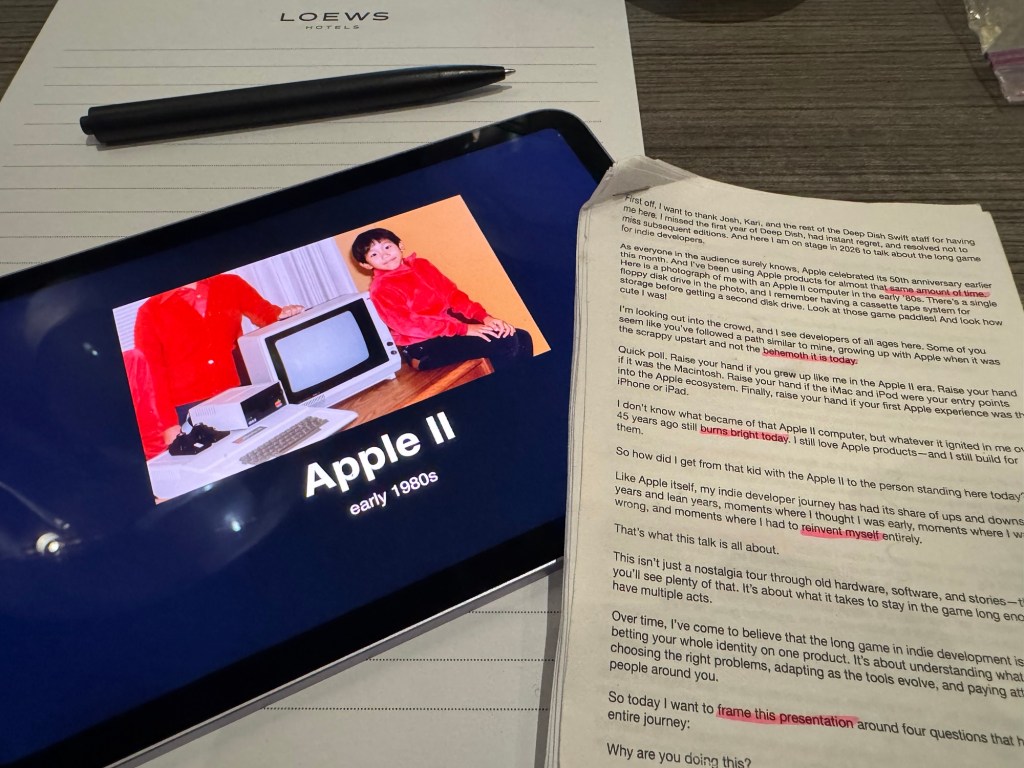
The Script
I had hoped to fully memorize the talk, but I occasionally relied on a printed script. I highlighted the magic phrases that I defined in the app, so I knew exactly what to say to trigger each slide.
ESP32S3 and Arduino sketch
To make this work, I built a tiny bridge between my iPhone and iPad. I used a SEEED ESP32S3 microcontroller and used ChatGPT to make the SEEED be three things in the following sketch:
- Wi-Fi hotspot
- HTTP web server
- USB HID device
<WiFi.h> <WebServer.h> <ESPmDNS.h> <USB.h> <USBHIDKeyboard.h>// ============================================================// CONFIG// ============================================================struct WifiCred { const char* ssid; const char* pass;};// Add any known networks here.// Leave empty if you always want hotspot mode.static WifiCred kKnownNetworks[] = {};static const int kKnownNetworkCount = sizeof(kKnownNetworks) / sizeof(kKnownNetworks[0]);static const char* AP_SSID = "KeynoteBuddy";static const char* AP_PASS = "YOUR_PASSWORD_HERE";static const char* MDNS_NAME = "keynotebuddy-s3";// How fast repeated commands are allowed (ms)static const unsigned long kMinKeyIntervalMs = 200;// ============================================================// GLOBALS// ============================================================WebServer server(80);USBHIDKeyboard Keyboard;enum class NetMode { WifiSTA, HotspotAP};static NetMode gNetMode = NetMode::WifiSTA;static unsigned long gLastKeyTime = 0;// ============================================================// WIFI HELPERS// ============================================================static bool connectToKnownWifi(uint32_t perNetworkTimeoutMs = 8000) { WiFi.mode(WIFI_STA); for (int i = 0; i < kKnownNetworkCount; i++) { Serial.printf("Trying Wi-Fi: %s\n", kKnownNetworks[i].ssid); WiFi.begin(kKnownNetworks[i].ssid, kKnownNetworks[i].pass); uint32_t start = millis(); while (WiFi.status() != WL_CONNECTED && (millis() - start) < perNetworkTimeoutMs) { delay(250); Serial.print("."); } Serial.println(); if (WiFi.status() == WL_CONNECTED) { Serial.printf("Connected to %s\n", kKnownNetworks[i].ssid); Serial.print("IP: "); Serial.println(WiFi.localIP()); return true; } WiFi.disconnect(true, true); delay(250); } return false;}static void startHotspot() { gNetMode = NetMode::HotspotAP; WiFi.disconnect(true, true); WiFi.mode(WIFI_MODE_NULL); delay(300); WiFi.mode(WIFI_AP); WiFi.setSleep(false); delay(500); bool ok = WiFi.softAP(AP_SSID, AP_PASS); Serial.println(ok ? "Hotspot started." : "Hotspot failed!"); Serial.print("AP SSID: "); Serial.println(AP_SSID); Serial.print("AP PASS: "); Serial.println(AP_PASS); Serial.print("AP IP: "); Serial.println(WiFi.softAPIP());}static void startWifiOrFallback() { if (kKnownNetworkCount > 0 && connectToKnownWifi()) { gNetMode = NetMode::WifiSTA; if (MDNS.begin(MDNS_NAME)) { Serial.printf("mDNS started: http://%s.local/\n", MDNS_NAME); } else { Serial.println("mDNS failed (not fatal)."); } } else { Serial.println("No known Wi-Fi found, falling back to hotspot."); startHotspot(); }}// ============================================================// USB HID HELPERS// ============================================================static bool canSendKeyNow() { unsigned long now = millis(); if (now - gLastKeyTime < kMinKeyIntervalMs) { return false; } gLastKeyTime = now; return true;}static void tapKey(uint8_t keycode) { if (!canSendKeyNow()) { return; } Keyboard.press(keycode); delay(40); Keyboard.releaseAll();}static void tapChar(char c) { if (!canSendKeyNow()) { return; } Keyboard.press(c); delay(40); Keyboard.releaseAll();}// ============================================================// HTTP HELPERS// ============================================================static void sendBlank() { server.send(200, "text/plain", "");}static void sendText(const char* text) { server.send(200, "text/plain", text);}// ============================================================// HTTP HANDLERS// ============================================================static void handleKeyboardIndex() { String s; s += "Keynote Buddy S3\n\n"; s += "Mode: "; s += (gNetMode == NetMode::HotspotAP) ? "HOTSPOT" : "WIFI"; s += "\n"; if (gNetMode == NetMode::HotspotAP) { s += "Hotspot SSID: "; s += AP_SSID; s += "\nHotspot IP: "; s += WiFi.softAPIP().toString(); s += "\n"; } else { s += "SSID: "; s += WiFi.SSID(); s += "\nIP: "; s += WiFi.localIP().toString(); s += "\nRSSI: "; s += String(WiFi.RSSI()); s += " dBm\n"; } s += "\nEndpoints:\n"; s += " /keyboard/next\n"; s += " /keyboard/previous\n"; s += " /keyboard/black\n"; s += " /keyboard/white\n"; s += " /keyboard/start\n"; s += " /keyboard/esc\n"; server.send(200, "text/plain", s);}static void handleNext() { // For Keynote on Mac, Right Arrow is usually fine. // If needed later, change to tapChar(' ') for Space instead. tapKey(KEY_RIGHT_ARROW); sendText("next");}static void handlePrevious() { tapKey(KEY_LEFT_ARROW); sendText("previous");}static void handleBlack() { tapChar('b'); sendText("black");}static void handleWhite() { tapChar('w'); sendText("white");}static void handleStart() { // Space is often a good "start/advance" key in presentation apps. tapChar(' '); sendText("start");}static void handleEsc() { tapKey(KEY_ESC); sendText("esc");}static void handleNotFound() { server.send(404, "text/plain", "");}// ============================================================// SETUP / LOOP// ============================================================void setup() { Serial.begin(115200); delay(1000); Serial.println(); Serial.println("Starting Keynote Buddy S3..."); // Start network first, while Serial is still stable WiFi.setSleep(false); delay(300); startWifiOrFallback(); // Routes server.on("/", HTTP_GET, handleKeyboardIndex); server.on("/keyboard", HTTP_GET, handleKeyboardIndex); server.on("/keyboard/next", HTTP_GET, handleNext); server.on("/keyboard/previous", HTTP_GET, handlePrevious); server.on("/keyboard/black", HTTP_GET, handleBlack); server.on("/keyboard/white", HTTP_GET, handleWhite); server.on("/keyboard/start", HTTP_GET, handleStart); server.on("/keyboard/esc", HTTP_GET, handleEsc); server.onNotFound(handleNotFound); server.begin(); Serial.println("HTTP server started."); if (gNetMode == NetMode::HotspotAP) { Serial.println("Connect iPhone to hotspot and use:"); Serial.println(" http://192.168.4.1/keyboard"); Serial.println(" http://192.168.4.1/keyboard/next"); } else { Serial.println("Use:"); Serial.println(" http://<IP>/keyboard"); Serial.println(" http://<IP>/keyboard/next"); Serial.printf(" Optional mDNS: http://%s.local/keyboard\n", MDNS_NAME); } Serial.flush(); delay(500); // Start USB only after all logging/network setup USB.begin(); delay(200); Keyboard.begin();}void loop() { server.handleClient();}
Using the Apple USB-C Digital AV Adapter, I provided the iPad mini HDMI from the house, power via my Nomad Slim 65W travel charger, and a USB-A cable to the SEEED ESP32S3.
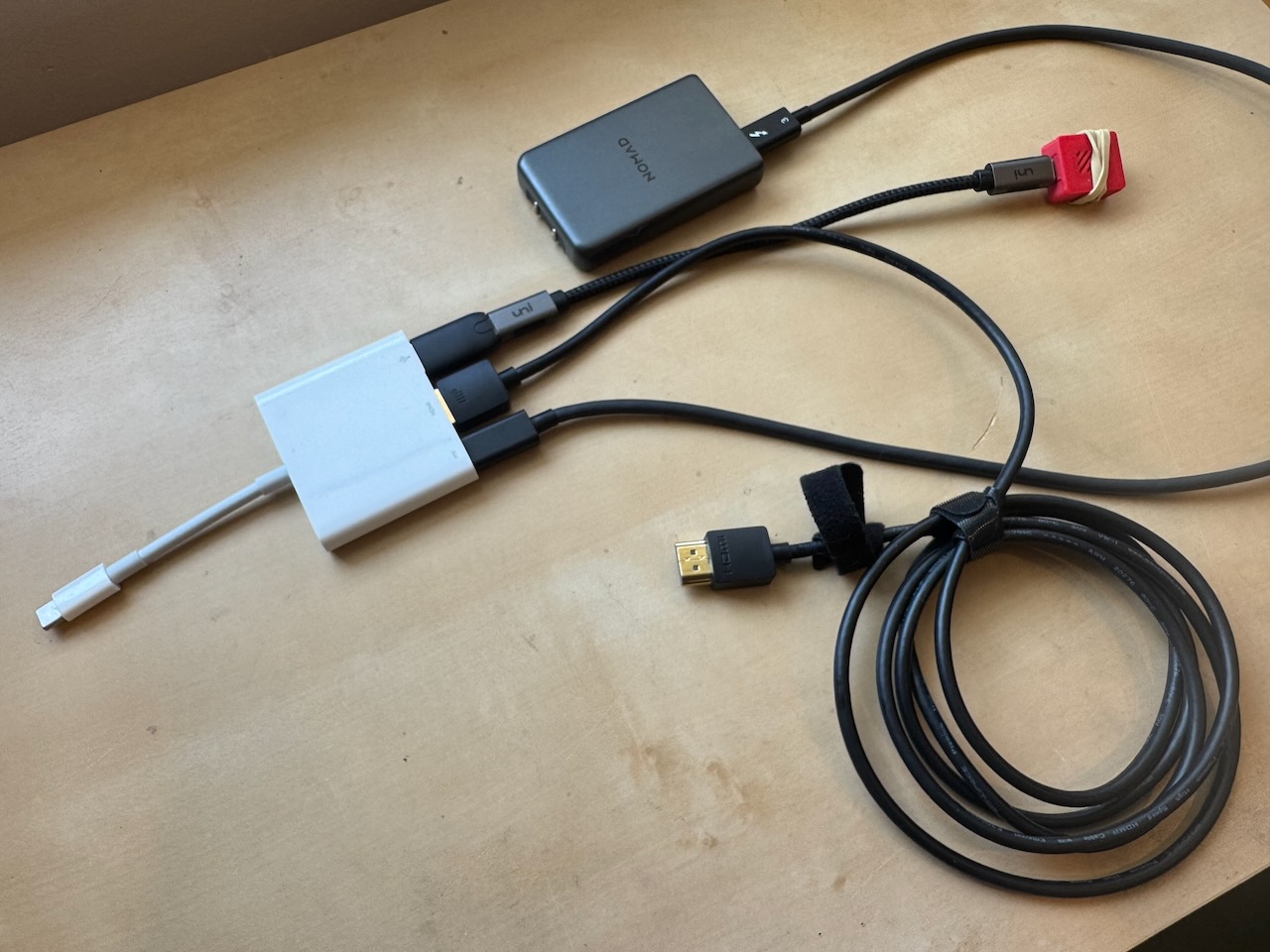
The workflow operated as follows:
- The iPhone connected to the hotspot
- Action Phrase sent HTTP requests to the SEEED when phrases were recognized
- The web server in turn sent keyboard events to the iPad to move to the next or previous slide.
On the macOS version of Keynote, you can press number + enter to jump to that numbered slide. You can use this trick to jump directly to a particular slide in your presentation. Just remember not to add or subtract any slides, or else the numbering will get out of whack! Unfortunately, this doesn’t work on iOS, so I was limited to next/previous navigation.
Before the Presentation
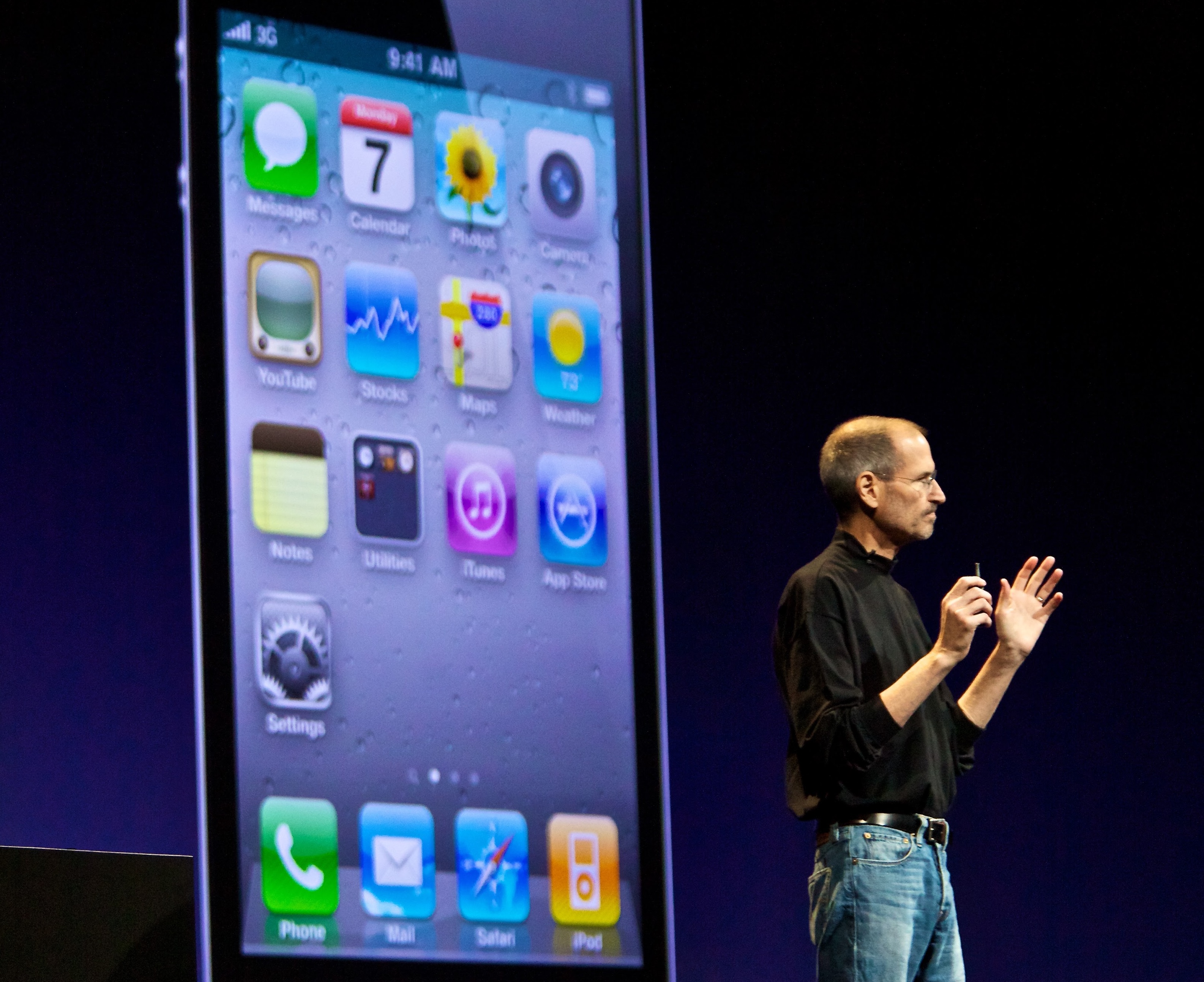
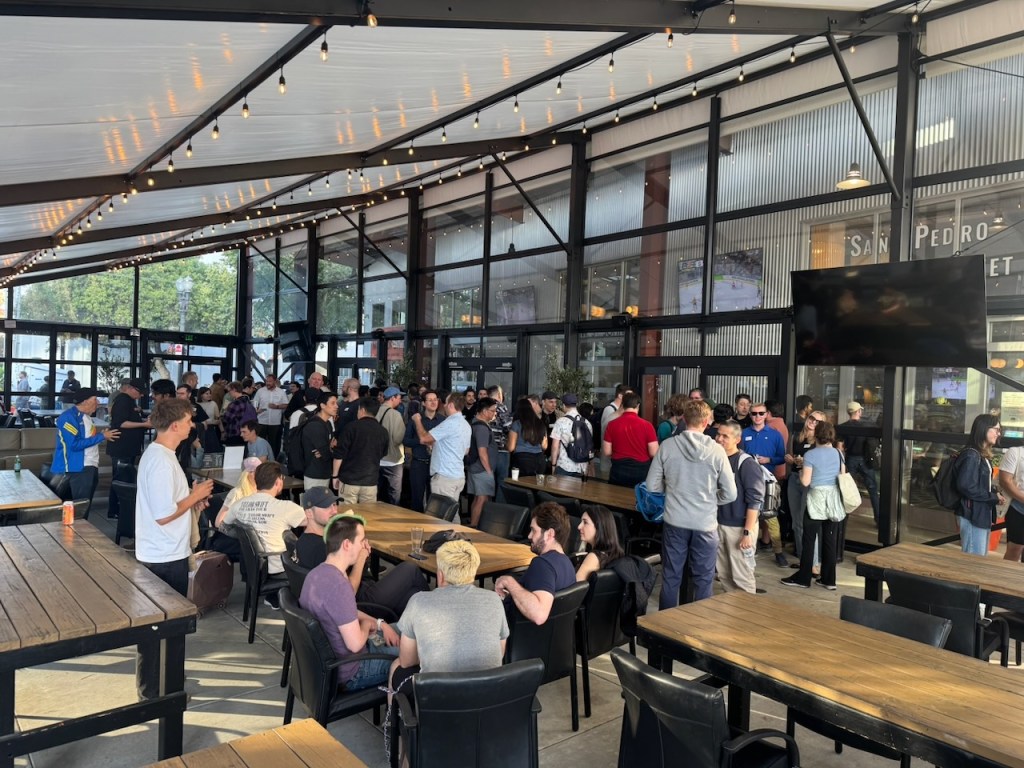
Right before the talk, things were a bit touch-and-go. The iPhone would not maintain a connection with the ESP32S3, likely due to Wi-Fi interference in the room. It reminded me of when Steve Jobs had to ask an entire audience to turn off their Wi-Fi hotspots during an Apple keynote because his demo wouldn’t work. I was about to tell people to do just that but the connection became solid and had no problems during my talk.
The Presentation
Here’s the livestream of the event—jump to the 2:07:35 mark to see the start of my presentation:
I have given many presentations before in the past, so I wasn’t nervous about giving the talk itself. What I wasn’t sure about was whether Action Phrase would reliably recognize my magic phrases in real time. I’m happy to say: it worked!
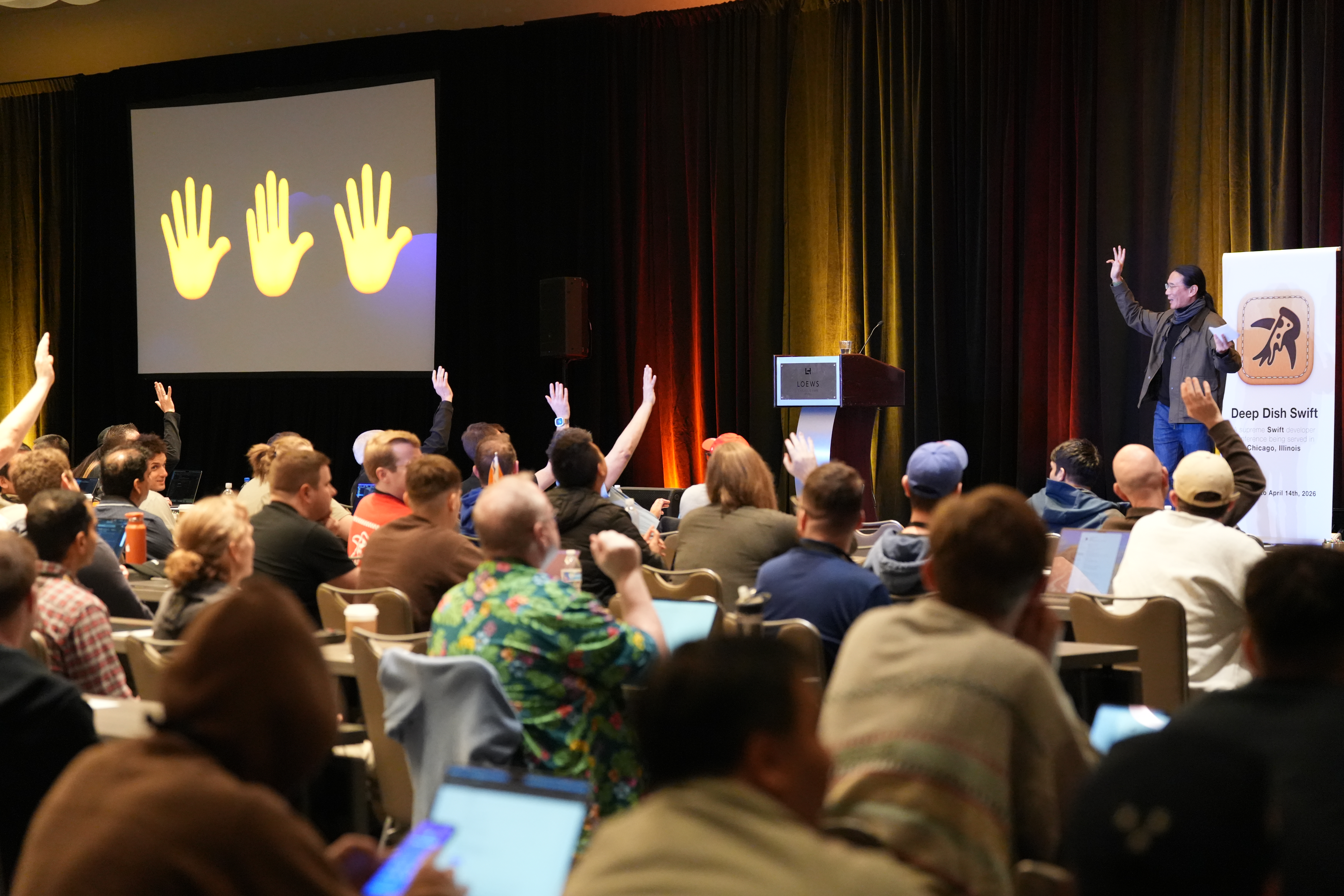
I especially liked the transition to asking the crowd to raise their hands. I said the magic phrase for the previous section, Keynote transitioned to the hands slide, and I naturally asked people to raise their hands if they grew up in the era of the Apple II computer.
There was one snafu during the talk where the projector lost its HDMI connection to the iPad mini. I had thought for a second that it was a problem on my end, but the house quickly brought the video back to the monitors and all was well.
For certain transitions, I used Keynote’s automatic transition feature to advance slides. I was able to time my speech such that the auto transitions ended right as I was ready to say my next magic phrase. In total, my script had 48 sections, with 46 of them having magic phrases attached to them to advance slides using Action Phrase.
Crowd reaction
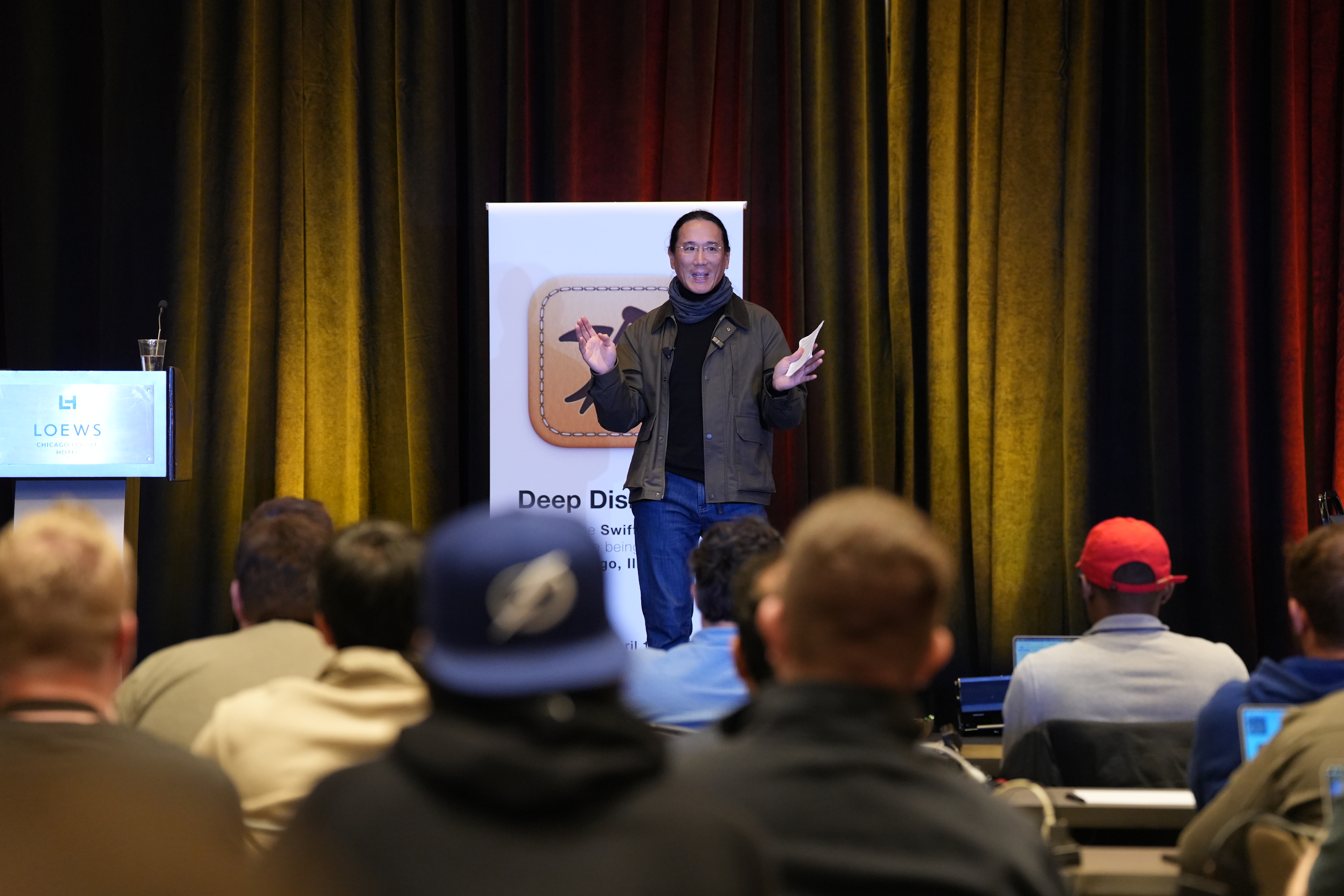
Instead of standing behind the podium, I walked back and forth on the stage, looking at the people across the whole ballroom. I had told a handful of people that I would be performing a magic trick, encouraging them to figure out what I was doing. In the Discord channel for the talk, I saw the following messages:
“im really curious how man is controlling his slides. Did he time it to his speech”
“I wonder if you could prime a voice model to just realize when you’re done talking about a specific slide / talking about the next one”
Mission successful!
For the first time, my slides followed my spoken story—not the other way around.
I’ll be using Action Phrase for future presentations and throughout my video production workflow. It’s a hands-free layer on top of your existing setup—whether that’s Stream Deck, Companion, or manual control—that lets you run your show just by speaking.
What I Changed After the Talk
After the conference, I improved how Scripts recognize sections. At Deep Dish, I used the Phrases feature because I found the Script’s lexical analyzer in Action Phrase 1.0.0 to be too slow for my 25-30 minute presentation. By using a “contains” matching rule, I could speak naturally while still reliably triggering magic phrases.
Action Phrase 1.1.0 introduces Script Cues and Magic Phrases for Scripts. In each section, you can define a phrase and alternate phrases that, when recognized, run the actions associated with the section. You can even import Markdown files and auto-generate sections and phrases using headings and bolded text. Learn more about Script Cues here.

Action Phrase 1.1.0 is available now for iOS and macOS.
Products Mentioned
- Action Phrase
- RODE Wireless Micro
- SEEED ESP32S3 microcontroller
- Apple USB-C Digital AV Adapter
- Nomad Slim 65W travel charger
- iPad mini 7
Disclaimer: This post may contain affiliate links. If you make a purchase through one of these links, I may earn a small commission at no additional cost to you. Thank you for supporting my blog!





Leave a Reply