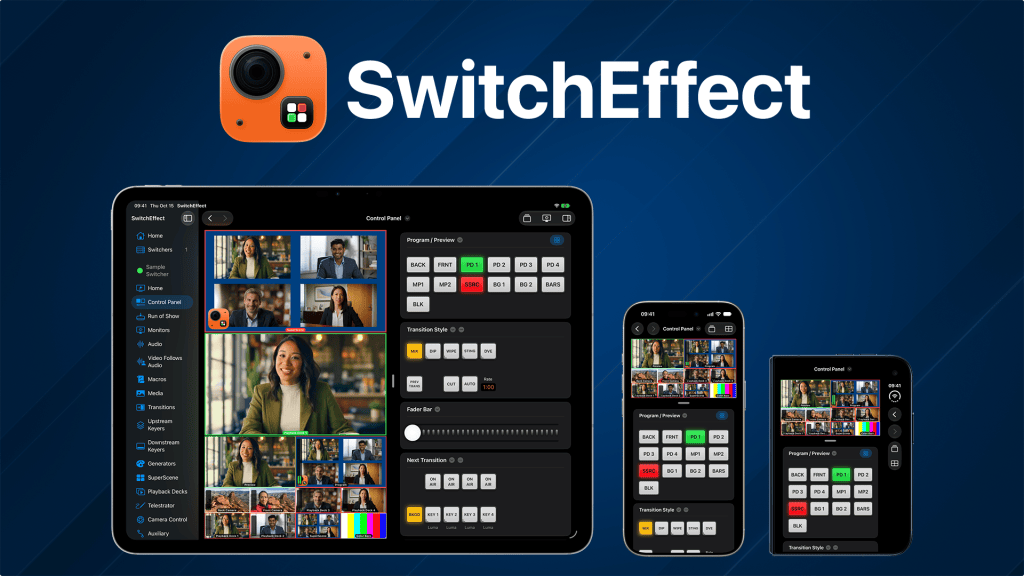
After months of development, testing, and debugging, I’m happy to announce that SwitchEffect and SwitchEffect Camera are finally available on the App Store!
For the past five years, I’ve been developing apps for controlling and automating live video productions. It started with MixEffect, my app for controlling Blackmagic Design ATEM switchers, and continued with apps like RouteEffect, Action Phrase, and Look Straight. Along the way, I’ve learned a lot about how people produce live video, and I’ve developed some strong opinions about how I think a video switcher should work.
I’ve also wondered: What if you didn’t need a dedicated hardware switcher at all? What if you could do everything on an iPhone or iPad?
Your iPhone or iPad Is the Switcher
SwitchEffect is a software video switcher that runs entirely on your iPhone or iPad. You can use the built-in or remote cameras, add graphics, play videos, display presentations, mix audio, and switch between everything in real time. When you’re ready, you can record or livestream the finished production. No dedicated hardware switcher or computer is required.
A Familiar Switching Experience
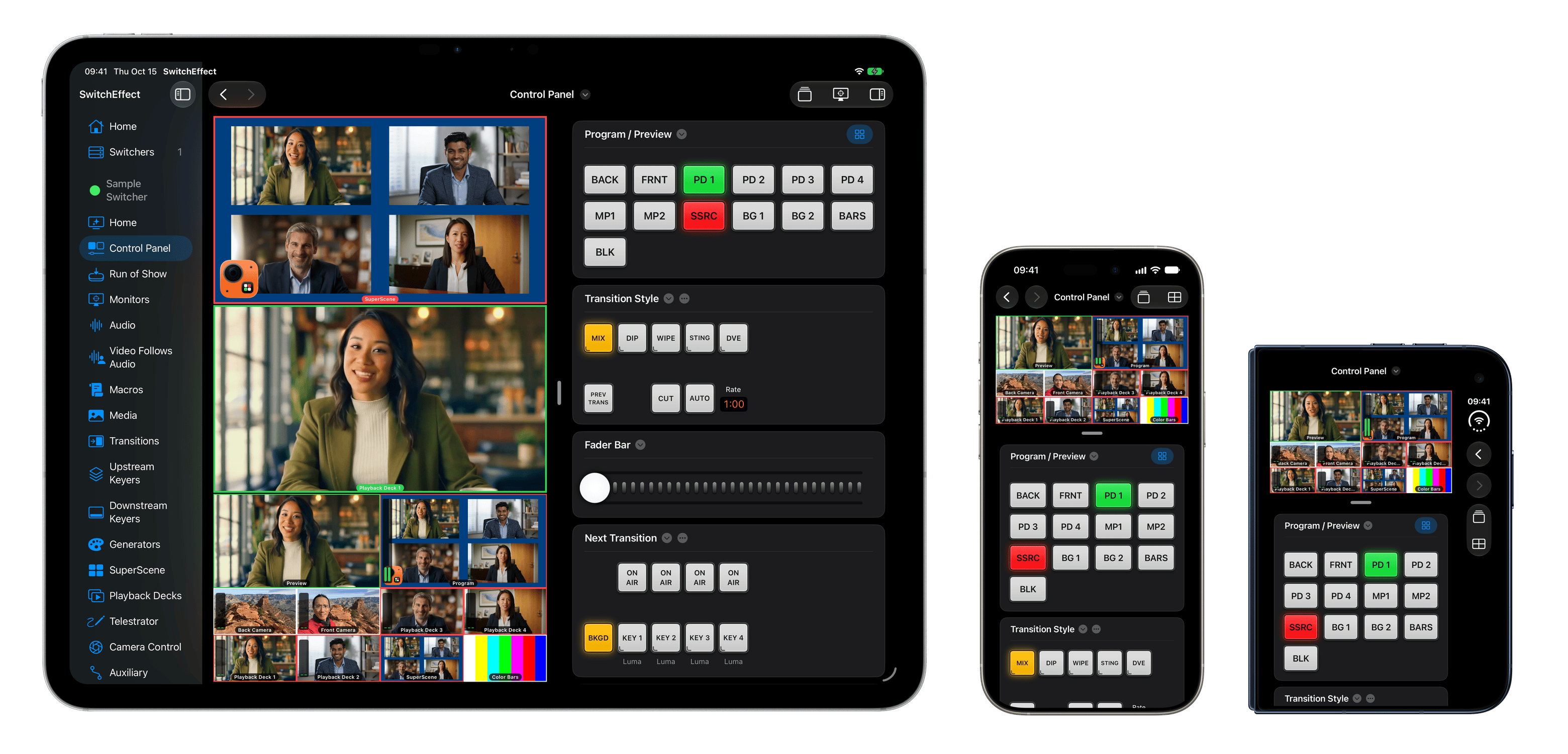
One of my goals with SwitchEffect was to make it feel familiar to anyone who has used a traditional video switcher, especially those who have used my MixEffect app. MixEffect is a control surface for Blackmagic Design ATEM hardware switchers that works on iOS, iPadOS, and macOS. It sends commands to the ATEM, which does all the actual video processing.
With SwitchEffect, your phone or tablet performs the video processing itself. Like an ATEM, it has Preview and Program buses, cuts and transitions, upstream and downstream keyers, media players, and a multiview for monitoring your sources.
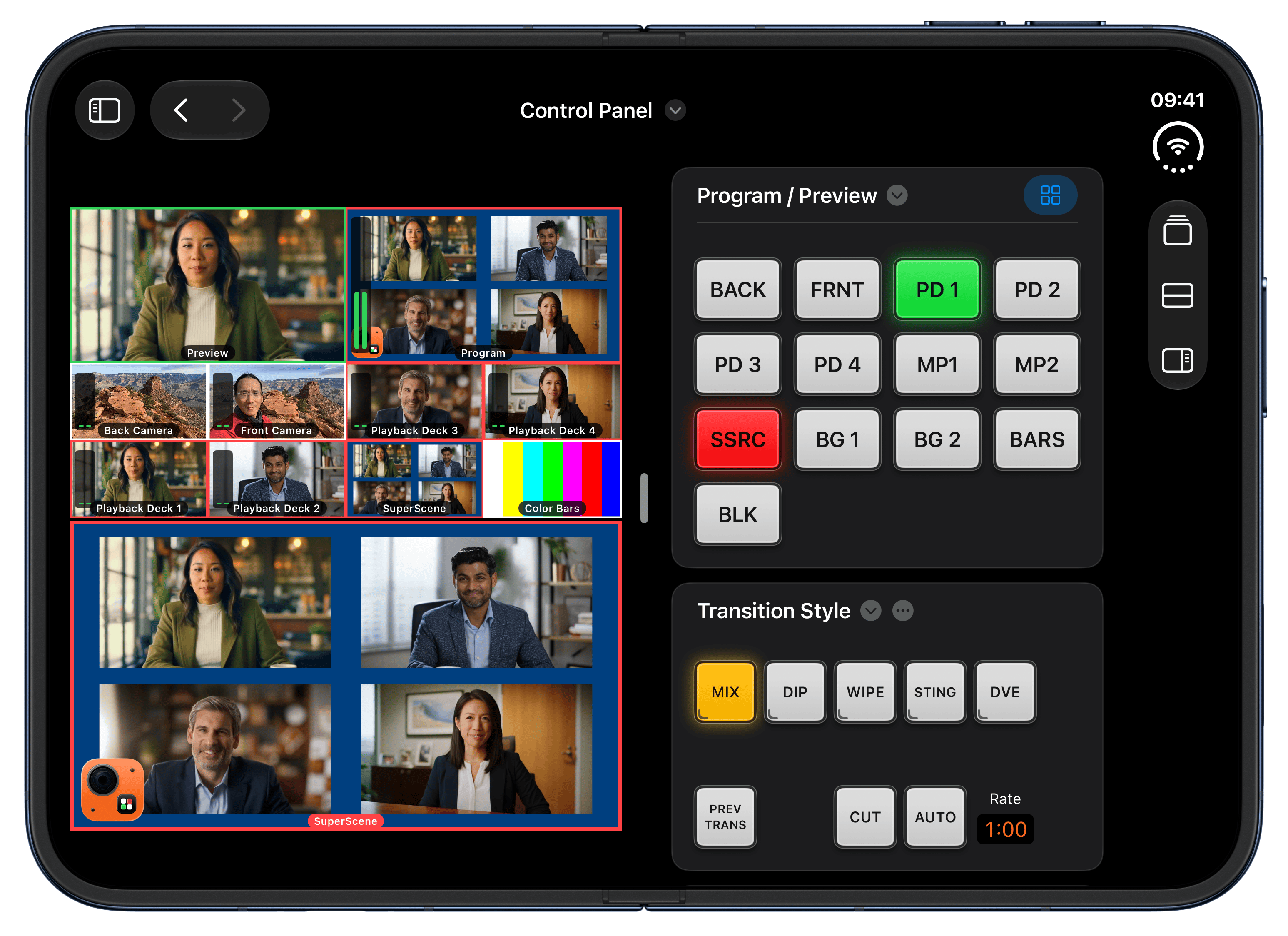
You can also configure the switcher to suit exactly what you want to produce. Keep it simple with two downstream keyers and one playback deck, or build a more elaborate setup with four downstream keyers, four upstream keyers, SuperScene, and five playback decks. Choose the tools your show needs and leave out the ones it doesn’t.
Set up your production ahead of time, save the switcher configuration, and load it again when you’re ready for your next show. This is useful if you’re producing a recurring podcast, livestream, class, or presentation. Rather than rebuilding everything from scratch each time, you can pick up where you left off.
SuperScene
One of my favorite features in SwitchEffect is SuperScene. If you’ve used SuperSource on a Blackmagic Design ATEM switcher or Scenes on the RØDECaster Video, the idea will be familiar.
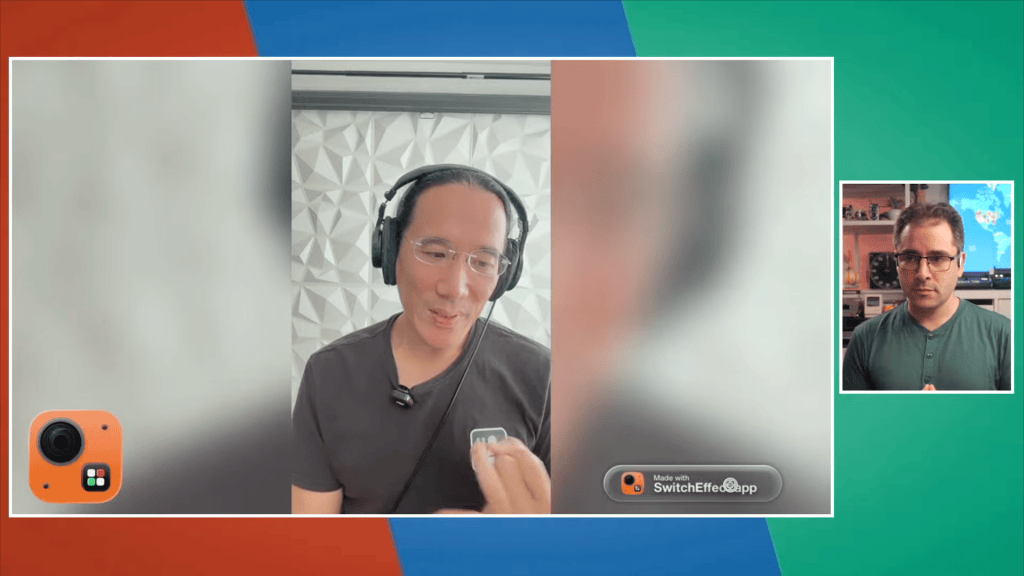
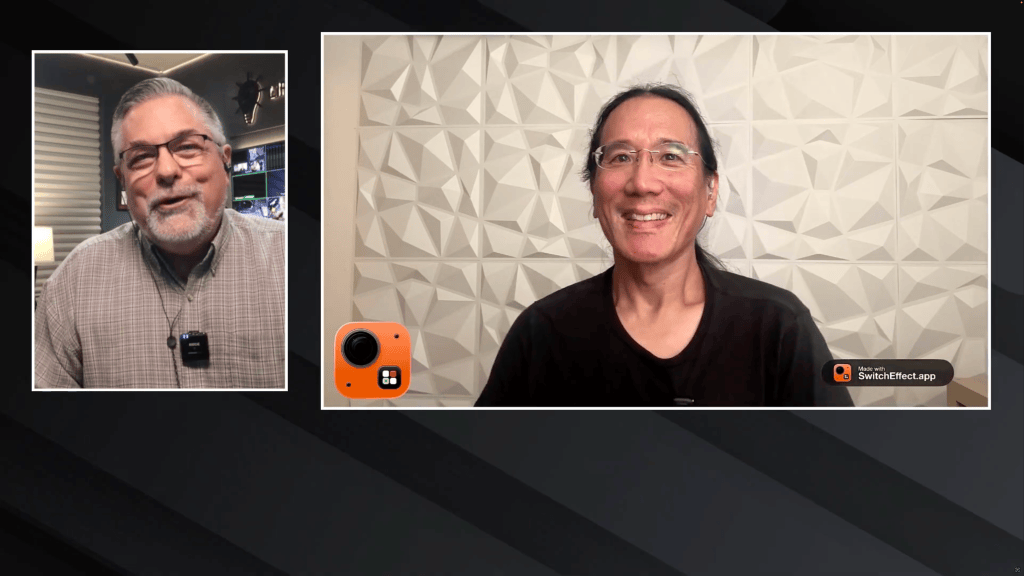
SuperScene lets you combine multiple video sources into a single composition: two people side by side for an interview, four participants arranged in a grid, or a presenter alongside their slides.
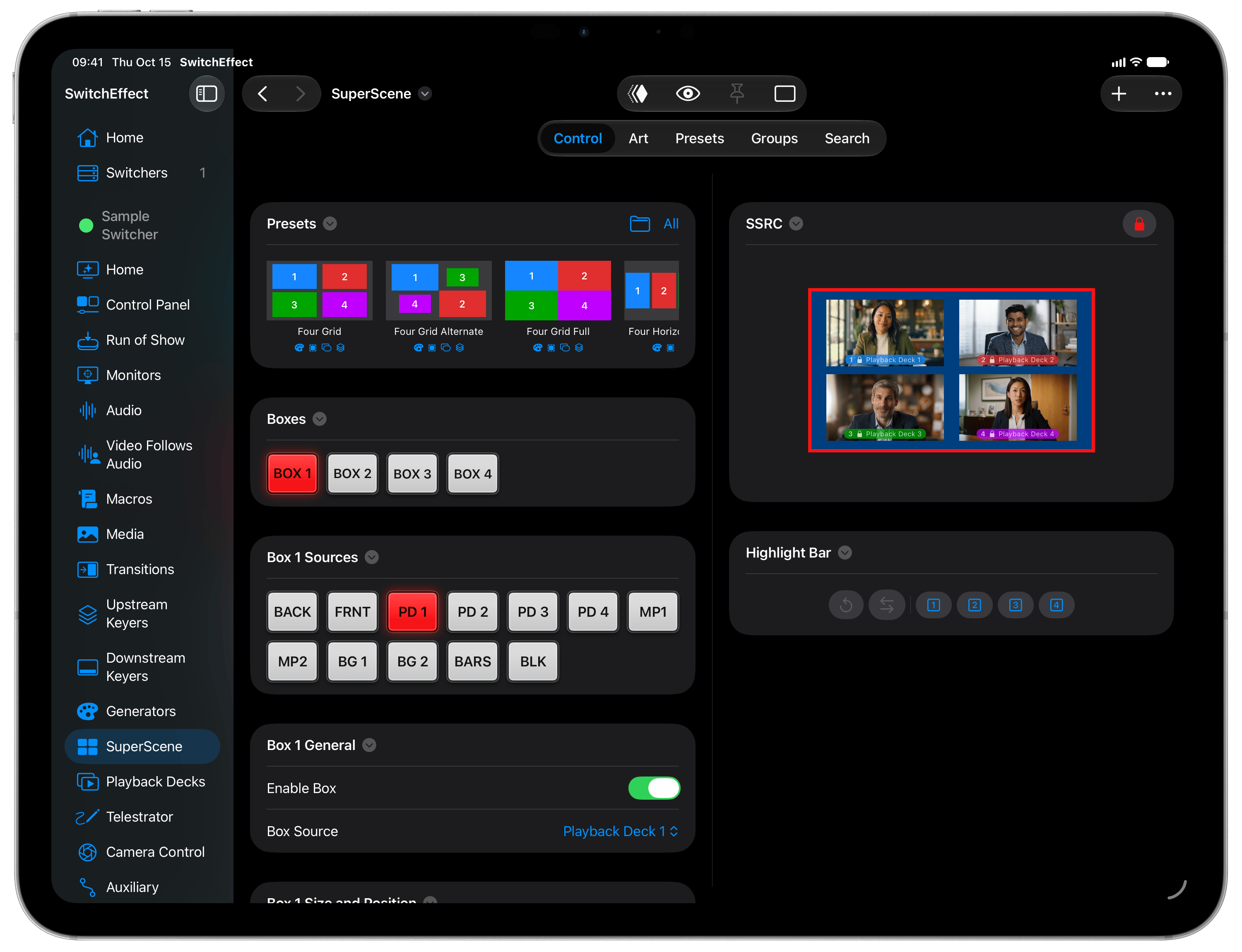
It also offers styling options you won’t find in ATEM’s SuperSource. Give your video boxes rounded corners, make them circular, and add shadows to create depth and separation from the background. You can also change their stacking order, placing Box 3 in front of Box 1, for example, to control how overlapping sources appear.
Create the layout, assign your sources, and switch to the entire composition as if it were a single camera angle.
Turn Your Other Devices into Cameras
Of course, a video switcher isn’t very useful if you don’t have any video sources to switch between! SwitchEffect supports a variety of video inputs, including the built-in cameras, compatible USB cameras (iPadOS only), network streams, images, videos, PDFs, and web pages.
I’ve also developed free companion apps called SwitchEffect Camera for iPhone, iPad, and Mac. With these apps, you can turn your other devices into remote cameras that connect to SwitchEffect over your local network.
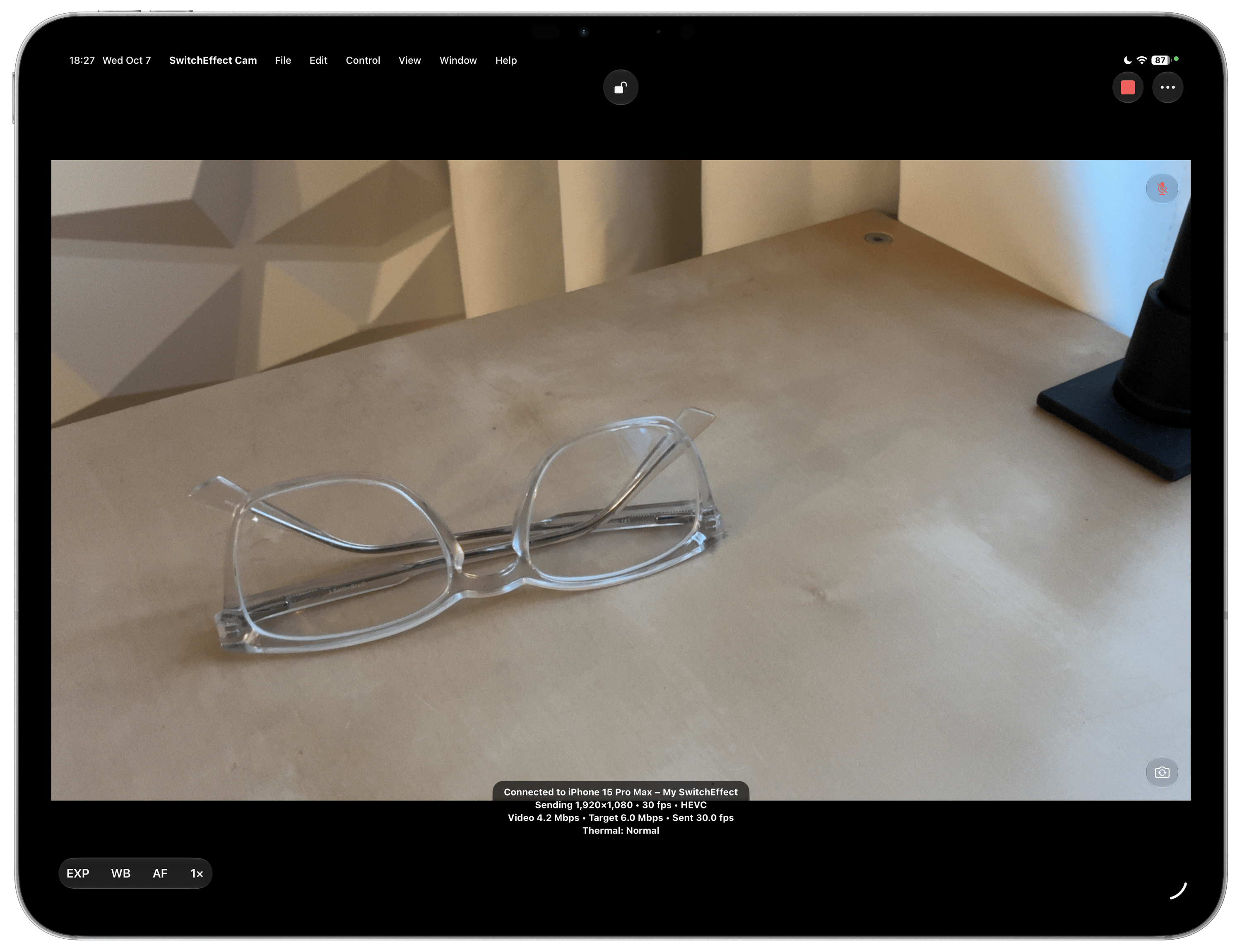
Have an old iPhone sitting in a drawer? Put it to work as another camera angle! SwitchEffect Camera supports iOS and iPadOS 15.6 or later, so devices that can’t run the main SwitchEffect app may still be useful as remote cameras.
The Mac version can also share its entire screen or an individual window. This makes it useful for software demonstrations, presentations, and tutorials.
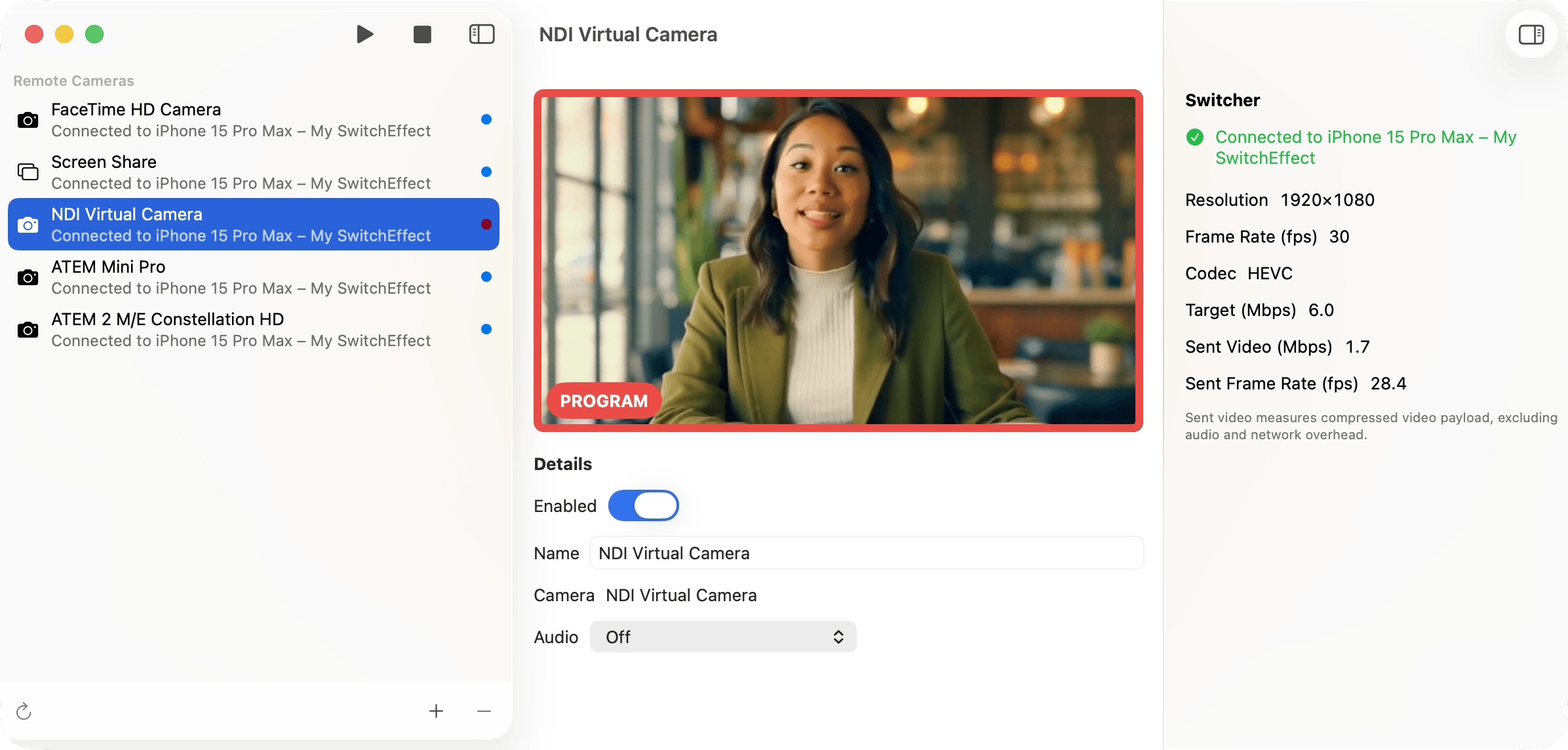
I’ve been testing SwitchEffect with a variety of devices, from older iPhones to my current iPads and Macs. It’s been fun seeing how many different camera angles I can put together without needing to buy additional cameras.
Running the Show
Switching cameras is only one part of producing a live video. You also need to manage audio, cue videos, display graphics, and keep track of what happens next.
With Run of Show, you can organize your production into a sequence of named cues. Each cue can trigger actions such as switching cameras, displaying graphics, or playing video clips.
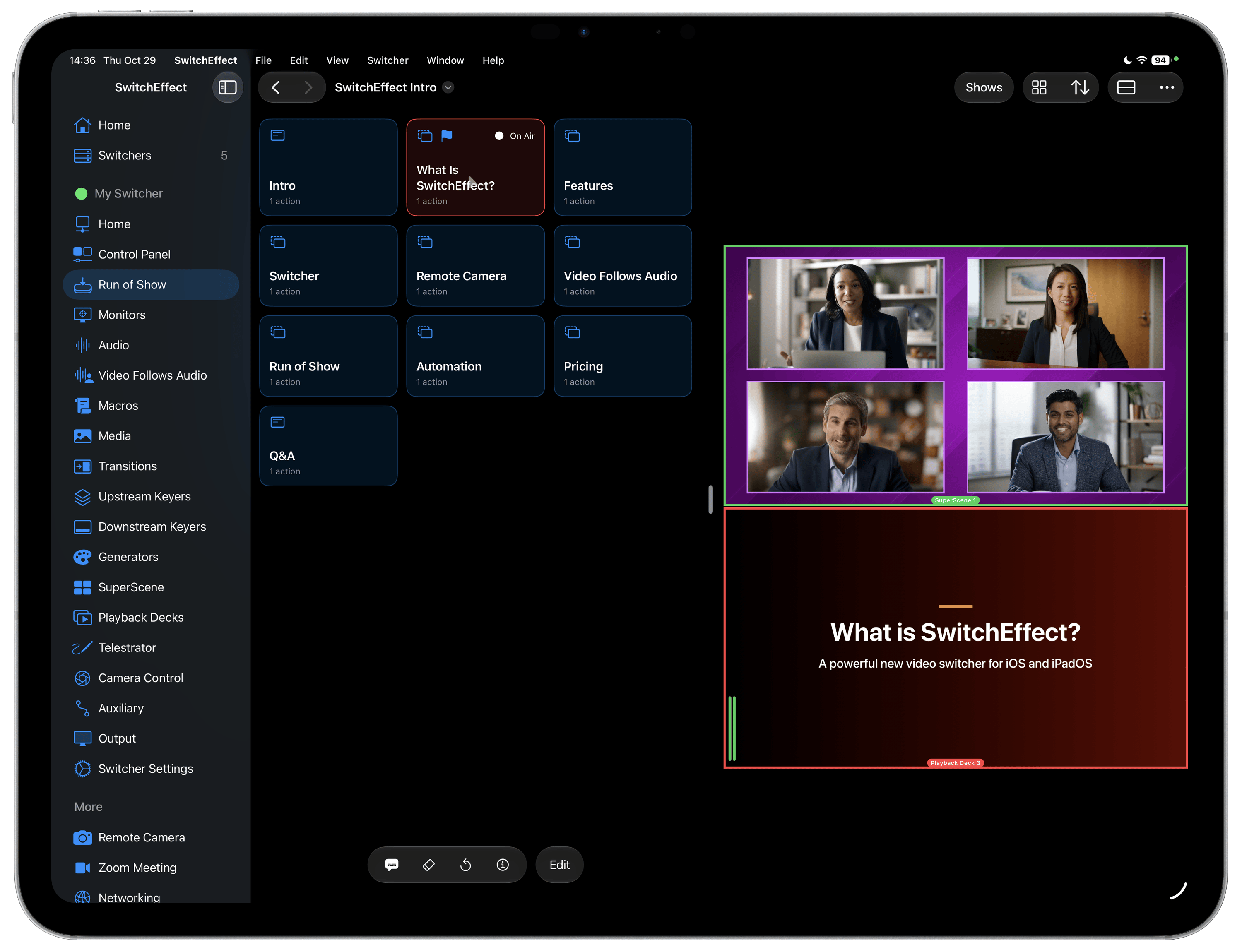
For a recurring production, you can prepare everything in advance and then work your way through the show without having to remember every individual step.
Automation
If you’ve followed my work on MixEffect and Action Phrase, you know that I like automation.
SwitchEffect supports Apple Shortcuts, OSC, MCP, and compatible ATEM hardware controllers. You can control it using Bitfocus Companion with an Elgato Stream Deck, or even my MixEffect app!
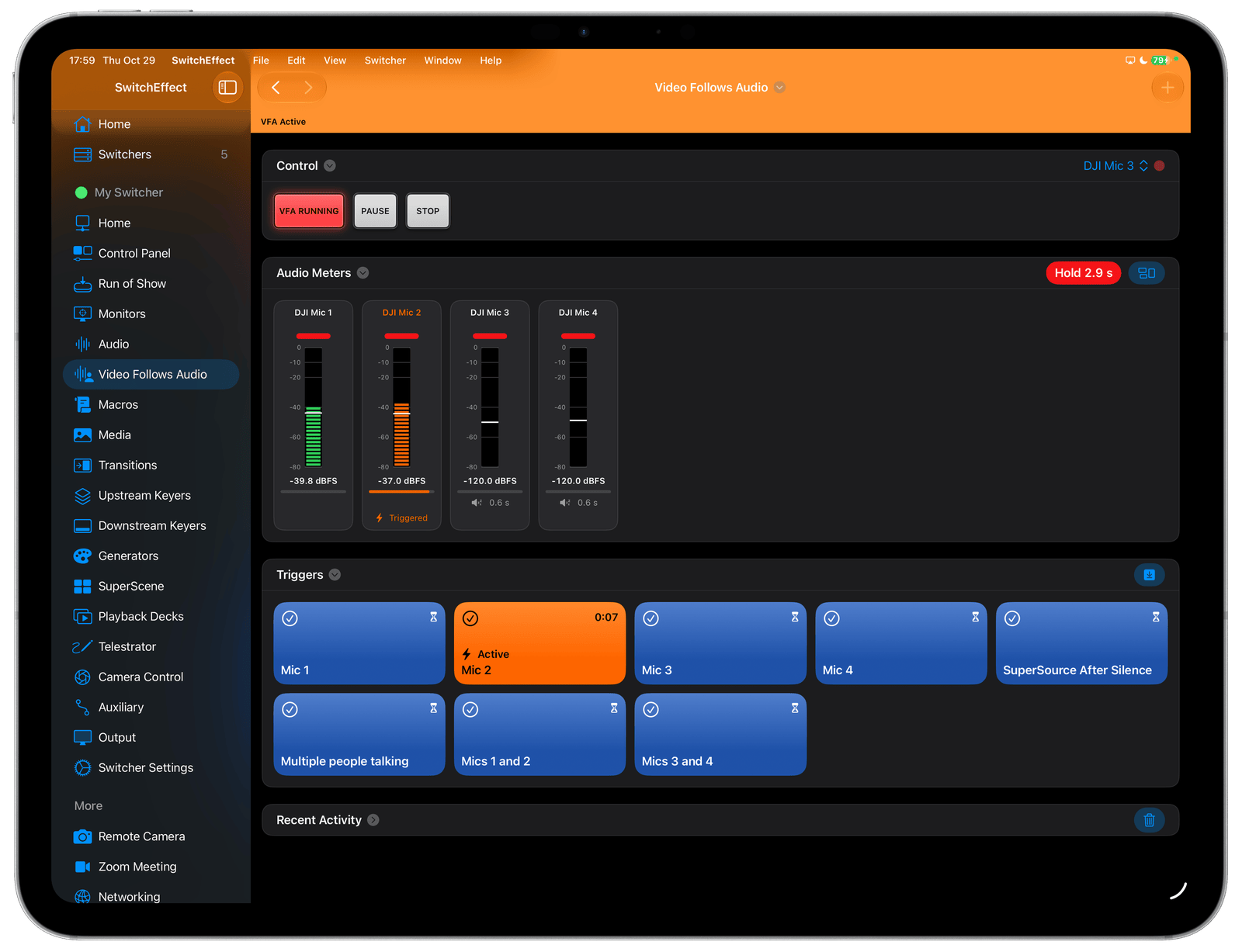
Video Follows Audio automatically switches camera angles based on who’s speaking. With each person’s microphone assigned to a separate audio channel, SwitchEffect can follow the conversation while you concentrate on hosting.
This requires a compatible microphone system or audio interface configured to deliver each microphone separately to SwitchEffect. A mixed feed won’t let it distinguish individual speakers. I’ll demonstrate my DJI Mic 3 setup in an upcoming video.
What About Performance?
SwitchEffect handles video decoding, compositing, audio processing, and output encoding on your iPhone or iPad. Sustained productions can put a considerable load on the device, especially with multiple active sources and recording, streaming, or both.
Heat has been one of the biggest challenges in my testing. An external Peltier cooler has helped my iPhone 15 Pro Max sustain demanding productions.
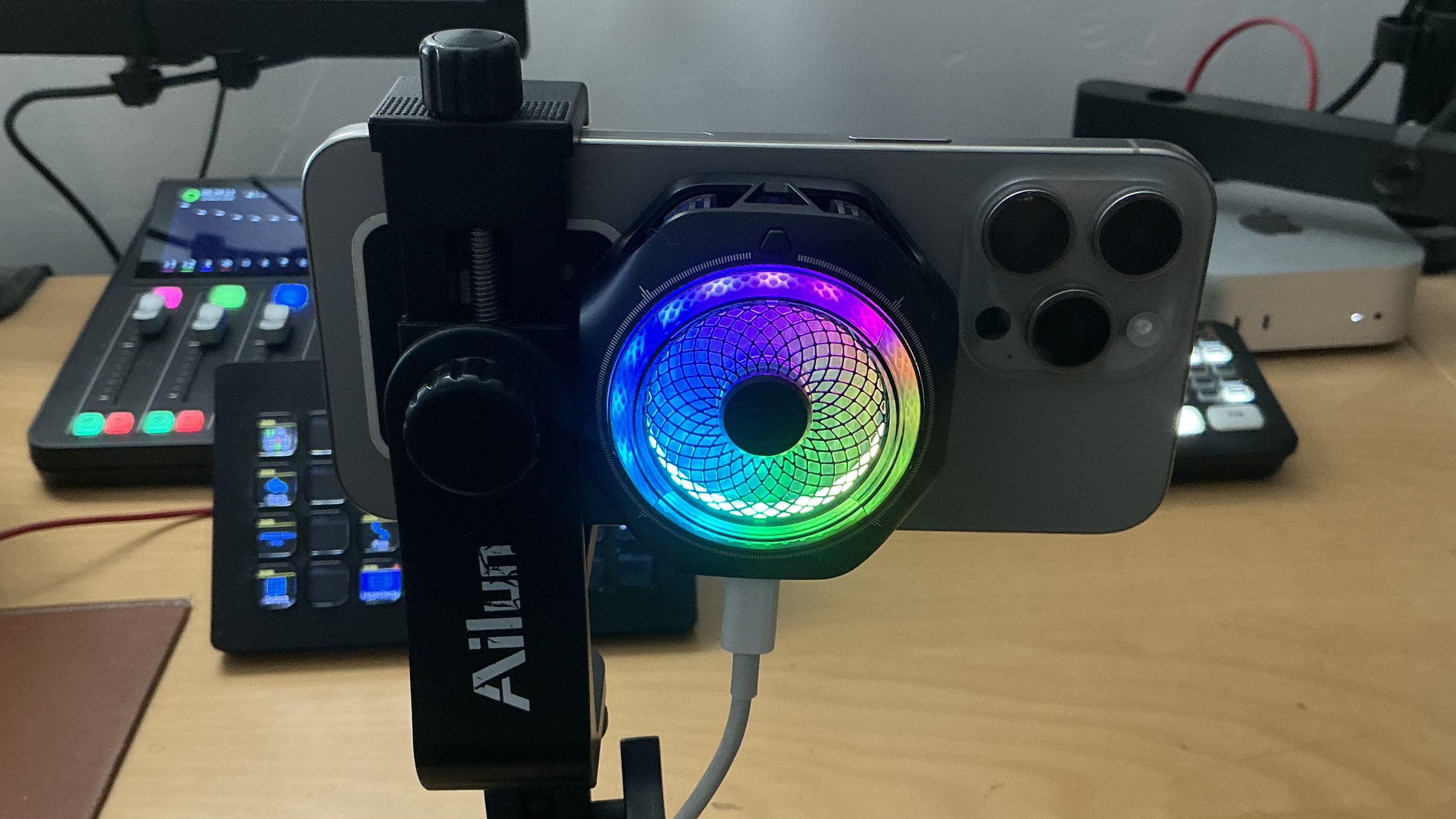
SwitchEffect’s System Health panel helps you monitor performance and thermal conditions. Start with the sources you need, choose practical resolutions and frame rates, and rehearse your complete production before going live. A wired Ethernet connection can also improve network reliability.
I’ve put more detailed advice in the performance and cooling guide, and I’ll continue optimizing the app across different devices and production setups.
Getting Started
Start with the included Sample Switcher to explore the controls, then create a switcher configured for your own production.
In the coming days and weeks, I’ll be putting together a series of videos demonstrating how to use SwitchEffect. I’ll start with the basics of setting up a production and then move on to more advanced topics such as remote cameras, SuperScenes, Run of Show, and automation.
Pricing and Availability
SwitchEffect is available now for iPhone and iPad running iOS or iPadOS 26 or later.
Hardware video switchers can cost hundreds or thousands of dollars. SwitchEffect brings production tools to devices you already own, free to use without a time limit. All outputs—including recordings and livestreams—carry a watermark unless you purchase watermark removal.

Choose the watermark-removal option that works for you:
- Monthly subscription: $7.99 USD
- Annual subscription: $49.99 USD
- One-time purchase: $99.99 USD through December 31, 2026
The one-time purchase removes the watermark permanently. Its price increases to $149.99 USD on January 1, 2027. Future optional features may require an additional purchase or subscription.
You can find more information on the SwitchEffect pricing page.
Zoom Integration
One feature that isn’t included in this initial release is Zoom integration, which will let you bring Zoom meeting participants directly into SwitchEffect as video sources.
Zoom integration is coming in a future update as a free public beta, giving you a chance to try it and share feedback as I continue refining the feature. After the beta ends, it will be available as a paid upgrade. Pricing and purchase options will be announced later.
Just the Beginning
It’s been a long road getting SwitchEffect to this point.
When I started working on MixEffect five years ago, I didn’t expect it would eventually lead me to building an entire software video switcher.
There’s still a long list of features I want to add, improvements I want to make, and ideas I want to explore. But at some point, I had to put my pencils down, stop adding features, and ship the app!
I’m excited to finally get SwitchEffect into people’s hands and see what they do with it.
Download SwitchEffect from the App Store, visit the SwitchEffect website to learn more, and let me know what you think.
And if you end up producing something with SwitchEffect, I’d love to see it!






Leave a Reply